
Members
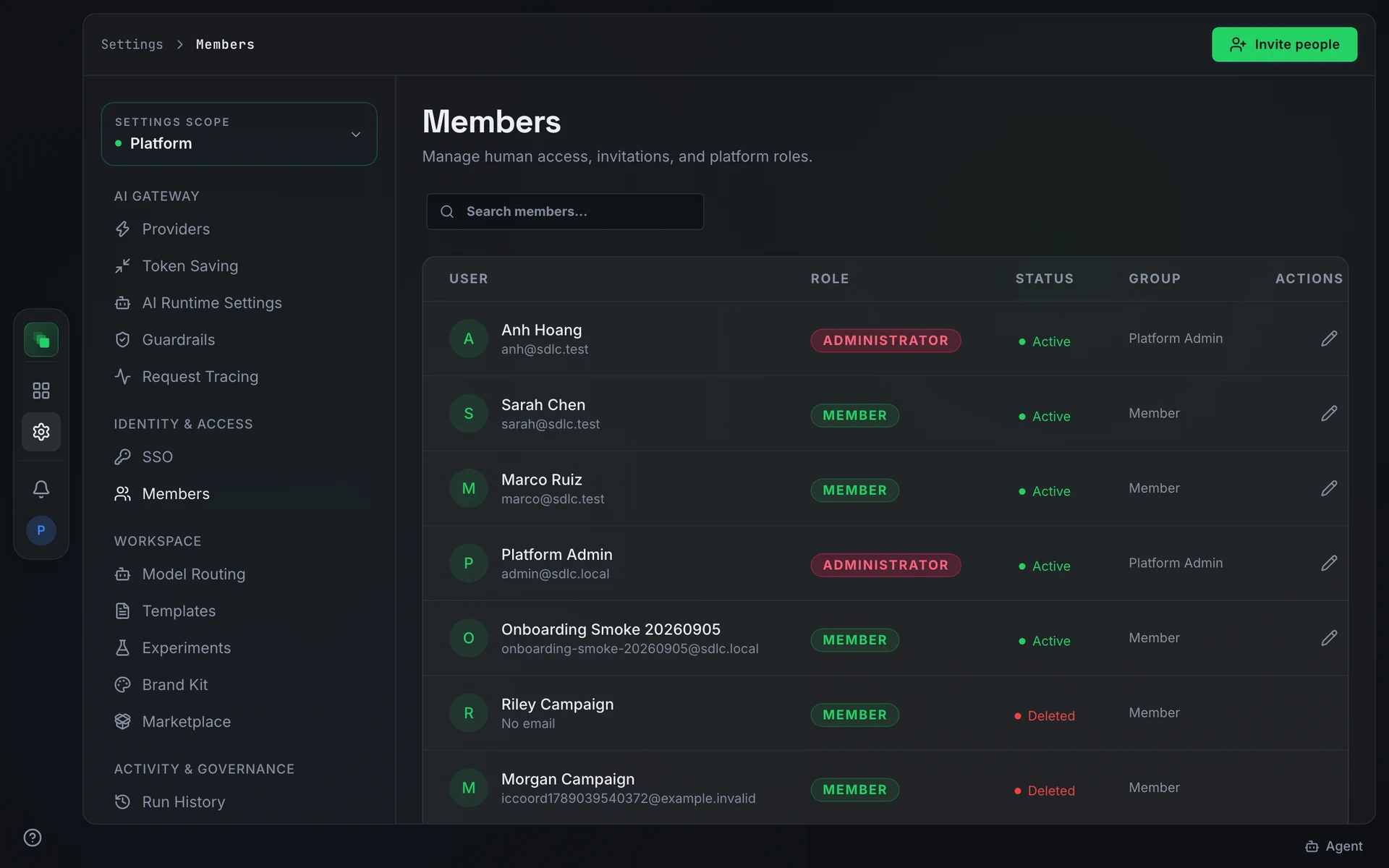
The Members tab lists every person with a platform account. Platform access is by invitation only; self sign-up is off.
Read this if you manage who can access the platform. You need the Administrator role to invite members and change platform roles.
Roles
Every platform account has one of two roles.
Choosing Administrator when inviting hides the project-assignment fields; administrators have platform-wide access and do not need project assignment.
Invite a member
Open Settings → Members ("Manage human access, invitations, and platform roles."). The table shows User, Role, Status, Group, and Actions. Use Search members... to filter.
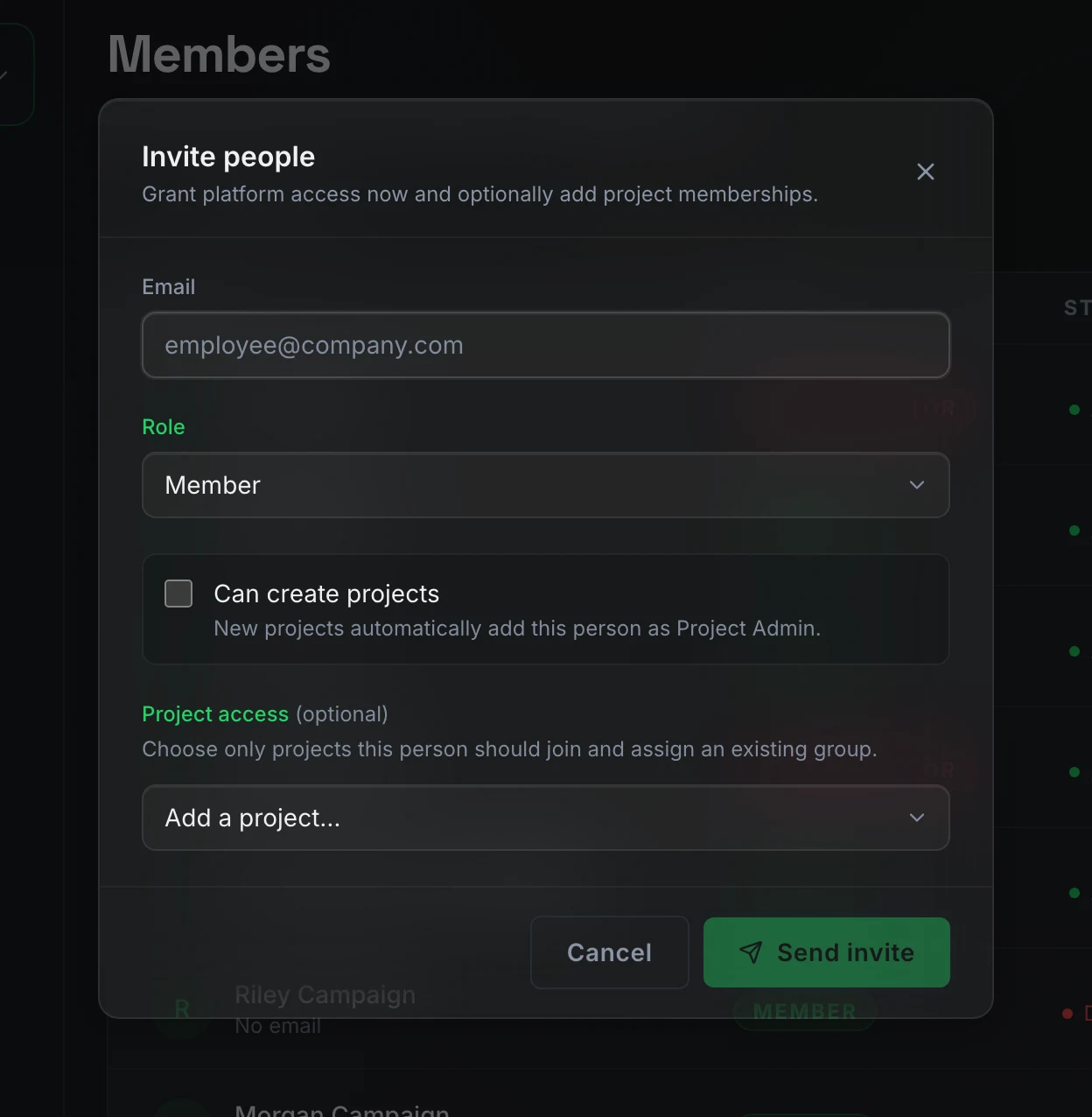
Press Invite people ("Grant platform access now and optionally add project memberships.") and fill in the modal:
- Email: the invitee's work address, for example
employee@company.com. - Role: Member or Administrator.
- Can create projects: visible for Member only. When checked, "New projects automatically add this person as Project Admin."
- Project access (optional): visible for Member only. Choose projects this person should join and assign an existing group in each one. The group defaults to Project Member.
Press Send invite. The button label changes to Sending… while the request is in flight.
What the invitee sees
The invite link leads to /invite, which shows the heading You've been invited and the copy "This link works once. Continue now to choose your password." The button Set your password opens the password-reset flow. The link sits behind a button click so mail scanners cannot redeem the one-time token automatically.
An invalid or expired link shows "This invite link is invalid or has expired."
Pending members and resend
The platform creates a placeholder account with pending status when an invite is sent. On first sign-in the placeholder is claimed and status becomes active. Pending rows in the Members table show a Resend invitation action.
To change a member's role or project access at any time, open Edit member access and press Save access.
Reset a member's password
Active members who sign in with a password have a Send password reset link action (key icon) on their row. The member receives an email with a single-use link, valid for 3 days, that opens a page to choose a new password. Their current password keeps working until they use the link. Members who sign in with SSO reset their password in your identity provider instead.
Project groups and per-project access
Project-level access is controlled from each project's own settings. Every project ships with two system groups: Project Admin and Project Member. They appear as shared templates and cannot be edited at the project level. Custom groups created in a project are local to it.
Group permission changes propagate to the identity provider so sign-in tokens refresh with the updated roles.
Next steps
- SSO: set up identity provider sign-in for platform members.
- Settings overview: platform roles, seeded groups, and permission categories.