
Review a fix
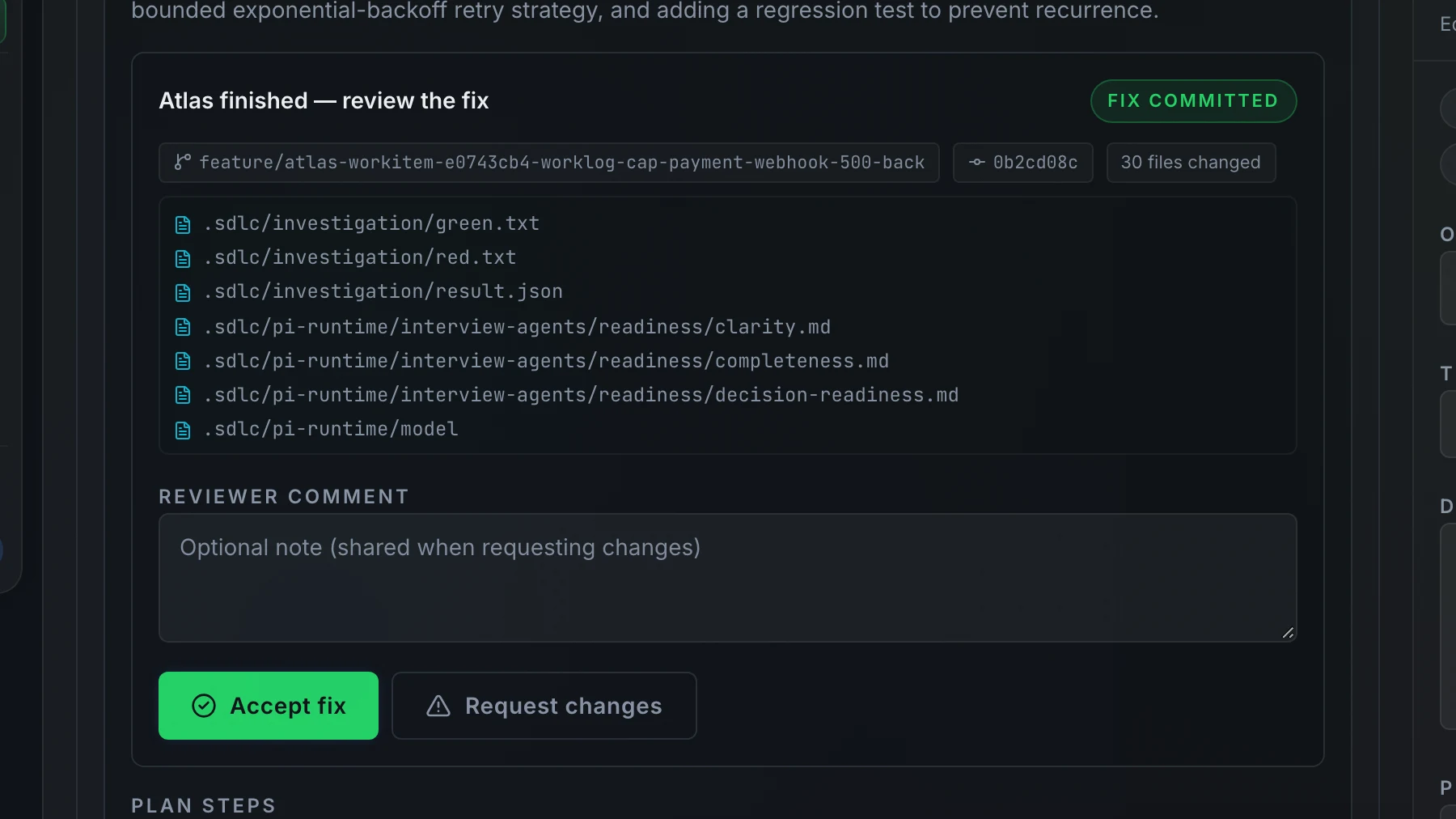
When execution finishes, the work item moves to In review. Open the work item and the Overview tab is already active. Scroll to the Your review node at the bottom, review the outcome above it, and decide.
Review the outcome
The Outcome node above Your review shows what Atlas produced: a plain sentence ("Atlas committed a fix to N files."), the files it touched as chips, and the git trail (branch, commit, and pull request link). Press Review changes → in that node to open the Changes tab and inspect the full diff.
Below it, Verifications lists the test commands the platform re-ran after Atlas finished, in the same environment Atlas used, with each exit code. The pull request repeats them under Platform-verified test runs, one table row per command with its output in a collapsible block.
Make a decision
The Your review node holds the decision box once Atlas finishes. An optional Review note field lets you add context. Press one of two buttons:
- Accept fix: shown when Atlas committed code changes to a branch.
- Accept & complete: shown when Atlas finished without committing code (for example, a documentation or analysis task).
Both buttons complete the work item and move it to the Done column.
Request changes
Press Request changes to send the item back. With a review note, Atlas runs again on the same branch and the same approved plan, with your note as its first instruction, and the item comes back to you for review when it is done. Without a note, the item returns to the Planning stage so you can revise the plan yourself.
FAQ
Can I accept without leaving a note?
Yes. The Review note field is optional. Leave it blank and press Accept fix or Accept & complete to complete the item.
What happens to my note when I request changes?
Atlas reads it first when it runs again on the item. It is also attached to the request-changes event: open the Activity tab to review the full exchange.