
Artifacts
An artifact is a versioned document: a product brief, a PRD, a design spec, a test plan, or a file you uploaded. Each has a type, sits in a delivery phase, and moves through a status lifecycle from draft to approved. Approved and locked artifacts feed the knowledge base; a downstream document does not generate until every artifact it depends on is approved.
The artifact list
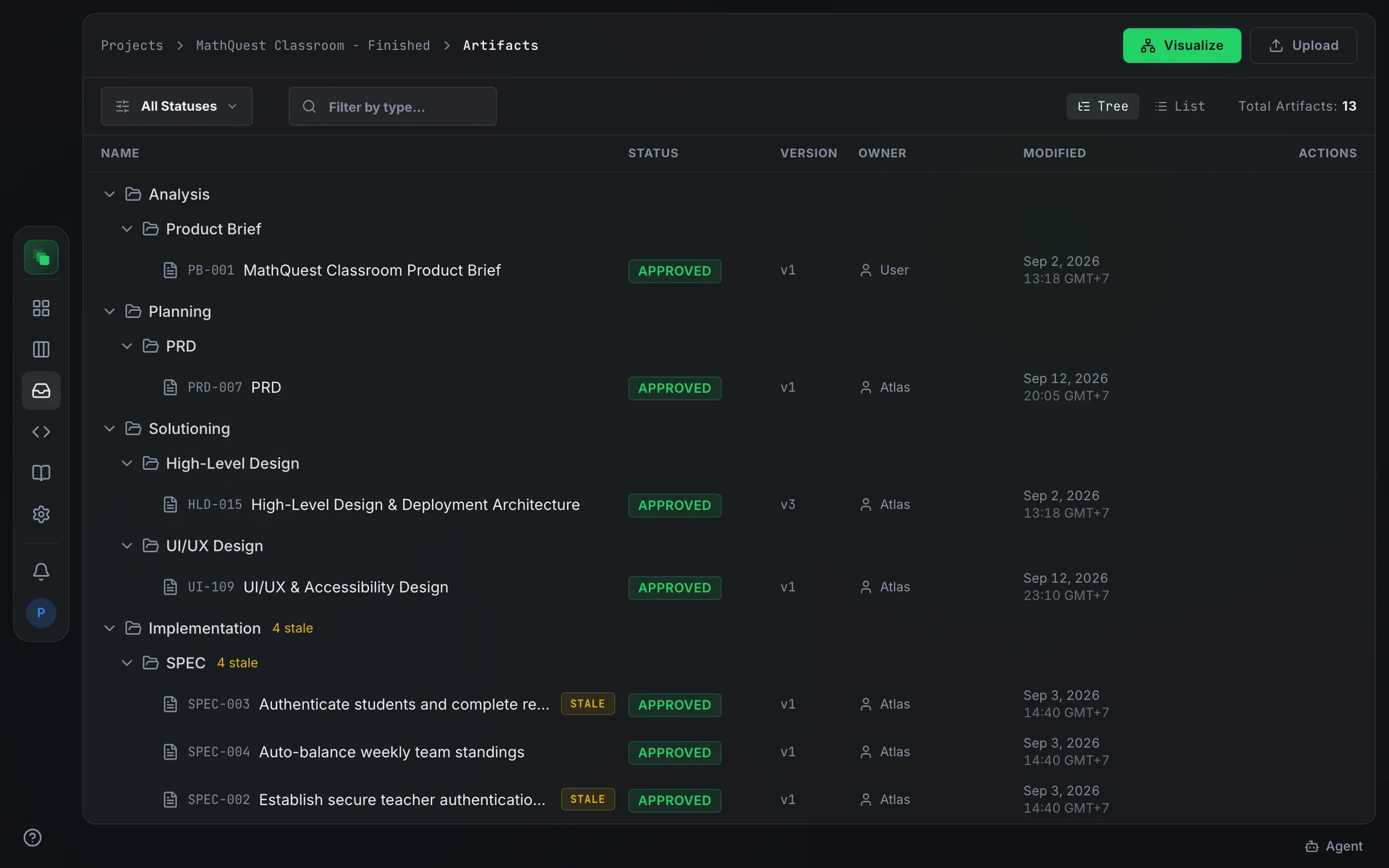
Open Artifacts in the project sidebar. The header shows Total Artifacts: N. Two buttons sit beside it: Visualize opens the system map, and Upload opens the Upload Document dialog.
Above the list, switch between Tree and List with the toggle. Tree is only available on wider screens; narrower screens fall back to List automatically. The status dropdown filters by All Statuses, Draft, In Review, Approved, Locked, or Superseded. The Filter by type... box narrows further by artifact type.
In Tree view, each row shows a Delete button on hover. Approved and locked artifacts add a Supersede button beside it. When as-is pages are stale, a Regenerate stale (N) button appears above the tree and re-queues only the flagged pages.
When a project has no artifacts yet, the empty state offers New Artifact and Upload document. New Artifact opens a two-step picker: first choose a phase, then choose a type.
Per-artifact actions
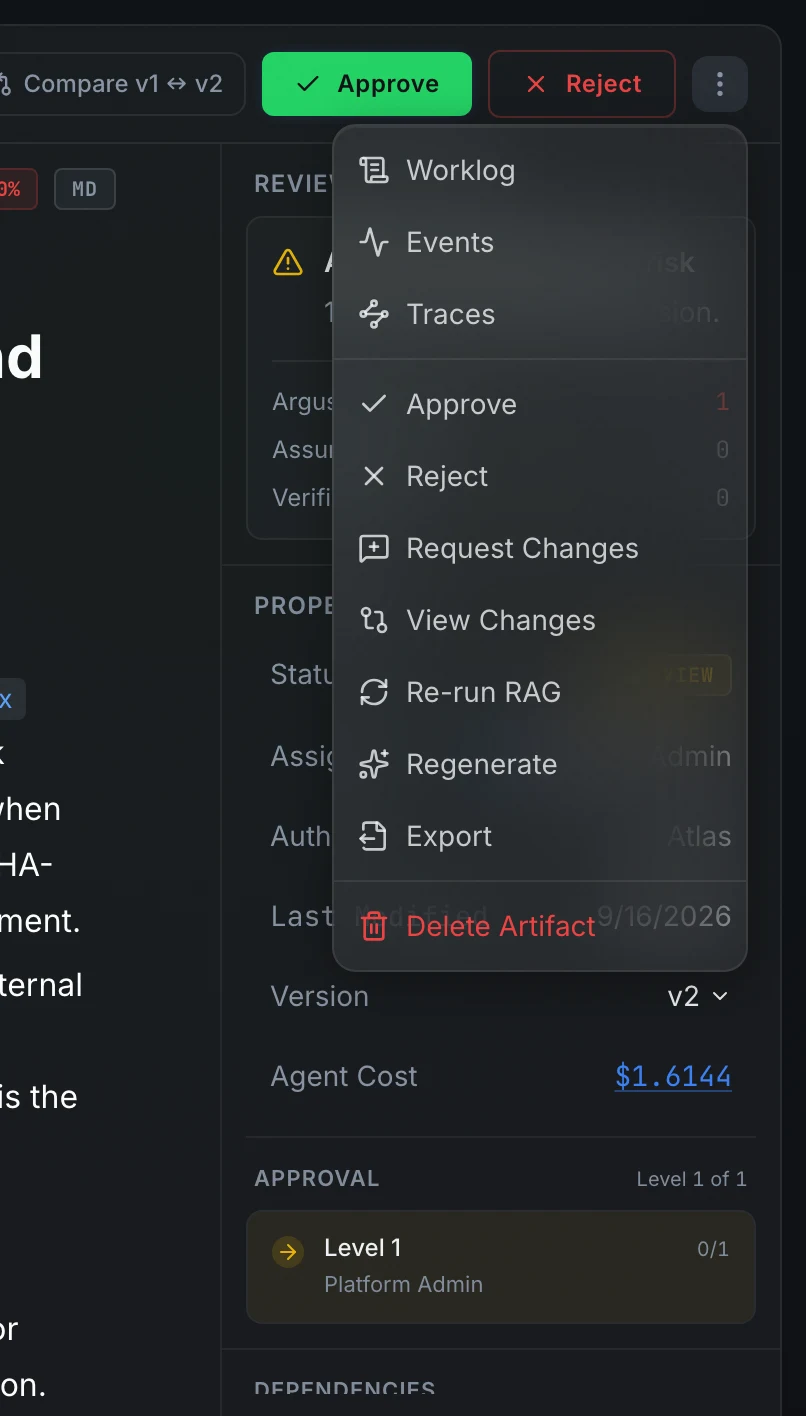
Inside an artifact's detail view, the ⋮ menu at the top right exposes the full action set: worklog, events, tracing, submit or review actions, versioning, and regeneration. Which review actions appear depends on the artifact's current status. Approve, Reject, and Request Changes are only shown when the artifact is in review.
Artifact types
Every artifact is one of three types, set by the role it plays.
Specs
Supporting
Code
Specs carry most of a project's decisions, and they build on each other in a fixed order, from the product brief through to the code that implements it.
The Specs pages cover how each type of spec is written. Every artifact carries a display ID such as PRD-001, shown next to its name and usable in a URL or a CLI command.
Phases
Artifacts sit in a delivery phase. The pipeline runs phases in this order:
- analysis
- planning
- solutioning
- implementation
A blueprint can add phases of its own. Check the project's pipeline page for the exact order.
Status
Every artifact moves through a status lifecycle from draft to approved. See Status lifecycle.
System map
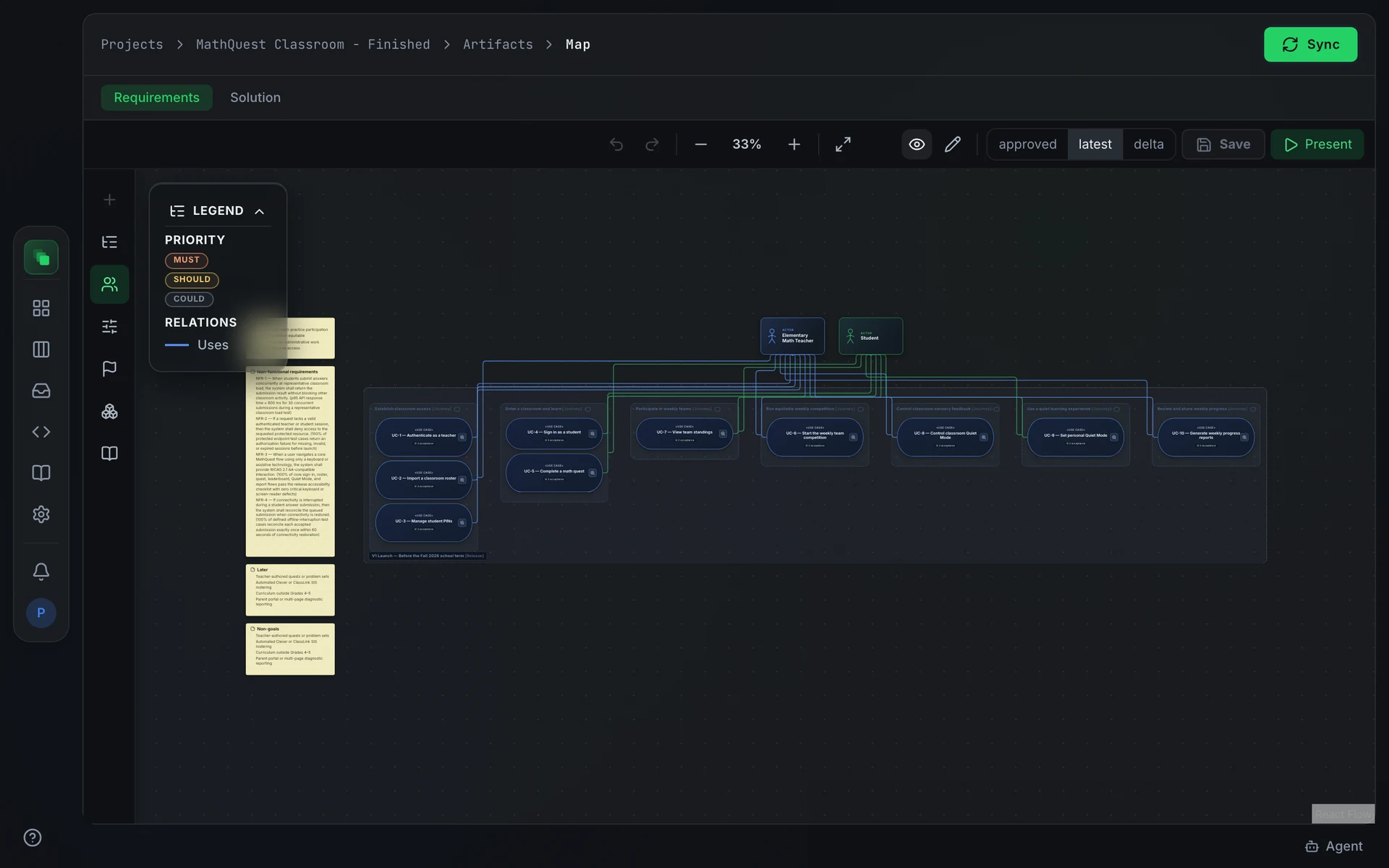
The system map visualizes the project's requirements and architecture as a navigable canvas, so you can review how the pieces fit without opening every document. Visualize opens it in the project's Knowledge Base. It has two map tabs, Requirements and Architecture, each assembled from the project's artifacts. Architecture also checks the design against the code: each element is marked as matched, not in code, or code only, and lists the files and routes behind it. Switch between the approved projection (published sources only) and the latest projection (includes drafts). Press Sync to re-derive the map; the header shows the assembler status while it works.
When no approved manifest exists yet, the axis reads that its sources have not been approved. A project with no manifest at all prompts you to run Sync.
Next steps
- Specs: requirements, technical design, and UI/UX, and how they are written.
- Create an artifact
- Edit a draft
- Status lifecycle
- Submit for review
- Approve an artifact
- Versions and history
- Design canvas
- Knowledge base