
Slack
Slack connects Flezise to your workspace so the builder agent can receive tasks as @mentions, post replies in the thread where the work arrived, and deliver approval and escalation alerts to a channel you choose.
Connect
Go to Project Settings → Integrations → Slack. If OAuth is available on your deployment, press Connect to open the authorization popup. The app requests these scopes:
Scopes are comma-separated in the Slack OAuth request. After authorization, the platform calls the Slack API to record the bot token and the workspace team_id (the post-exchange step). Subsequent events from that workspace are routed to this project using the stored team_id, so one set of credentials covers the whole workspace.
If OAuth is not available on your deployment, press Connect with token and supply the credentials directly:
Set up event delivery
The platform generates a webhook URL once the connection is saved. Use that URL as your Slack app Event Subscriptions Request URL. Complete these steps in order:
- Open your Slack app at api.slack.com/apps.
- Go to Basic Information and copy the Signing Secret into this connection.
- Go to OAuth & Permissions and copy the Bot User OAuth Token into this connection.
- Save this connection, then copy the generated webhook URL from the saved-connection panel.
- Go to Event Subscriptions, turn events on, and paste the webhook URL as the Request URL.
- Under Subscribe to bot events, add
app_mentionandmessage.channels. Reinstall the app if Slack asks, then @mention the bot in a channel to confirm delivery.
Capabilities
Configuration
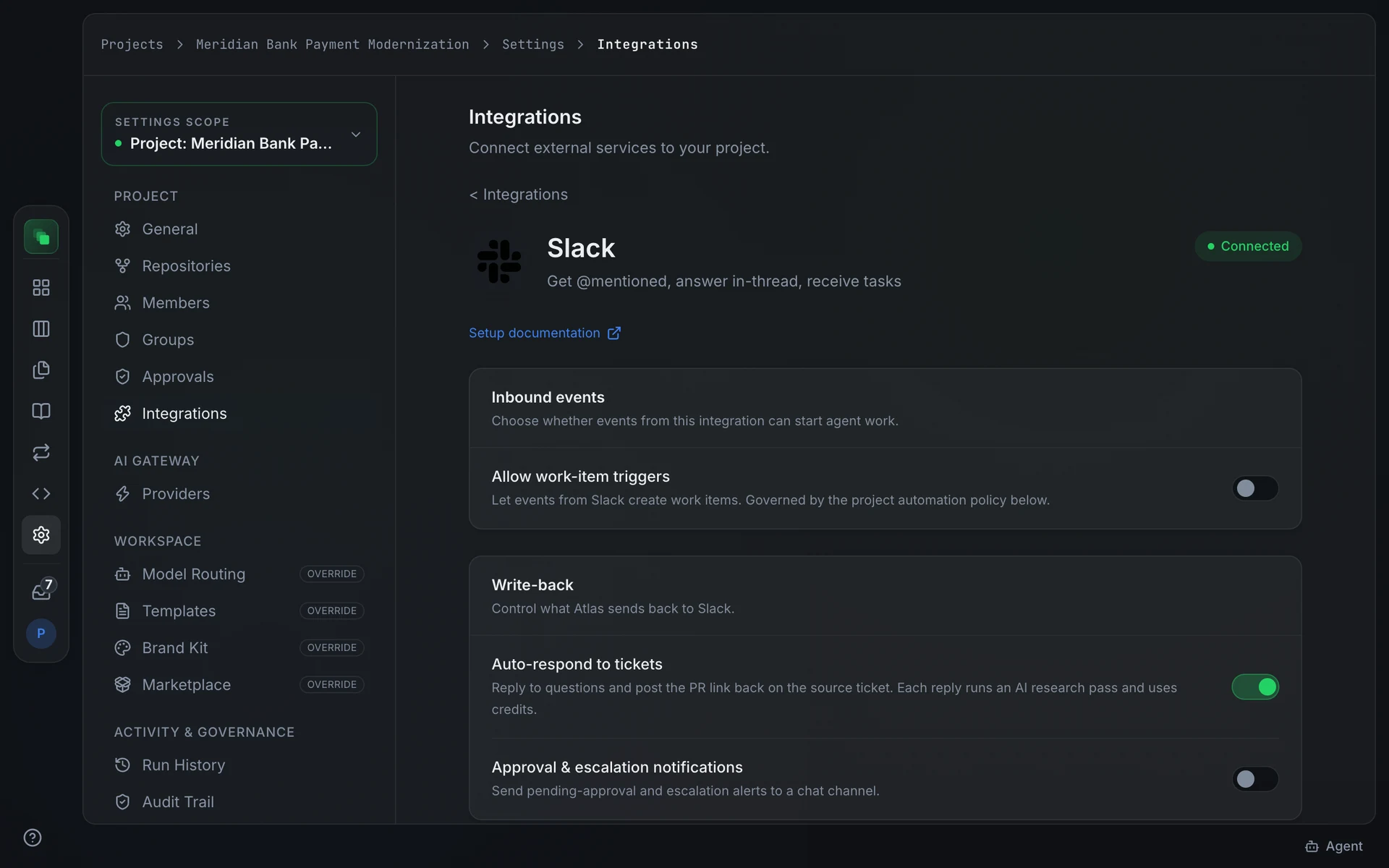
The Write-back card on the integration detail page controls what the builder agent sends back to Slack after each event.
Auto-respond to tickets is on by default. The builder agent replies to the mention and posts the pull-request link back in the same thread once work is done. Each reply runs an AI research pass and uses credits.
Approval and escalation notifications is off by default. Enable it and a Notification target (channel/conversation ID) field appears. Enter the Slack channel ID (for example C01ABCDEF) where the platform should post pending-approval and escalation messages.
The Inbound events card carries an Allow work-item triggers toggle. When it is on, events from Slack can create work items on the project board, subject to the project automation policy.
Events
Both events pass through the event classifier. A message that asks Atlas to take on work, such as "can you log it and look into it?" or "please fix this bug", becomes a work item when the automation policy allows it and Allow work-item triggers is on: its first sentence is the title, the message is the description, and agent triage starts. Any other mention is a question, answered in a thread. Messages posted by bots, including the builder agent's own replies, are not answered.
An @mention reaches the platform twice, as message and app_mention; both count as one message, so Atlas answers it once, in a thread. Replies keep their formatting (headings, bold, lists, code and tables) up to 12,000 characters; longer replies arrive as plain text.
Next steps
- Integrations overview: the full provider catalog and capability chips
- Work the board: manage work items that Slack events create
- Audit trail: every triggering event is recorded here