
Templates
The Templates tab shows the artifact templates that generation uses for each pipeline phase. Editing a template at the platform scope sets the default for every project; a project can save its own override on top.
Read this if you want to change the prompts or structure of generated artifacts. You need the Administrator role. The Templates tab is plan-gated: on plans without artifact template editing it shows a lock icon and is unselectable.
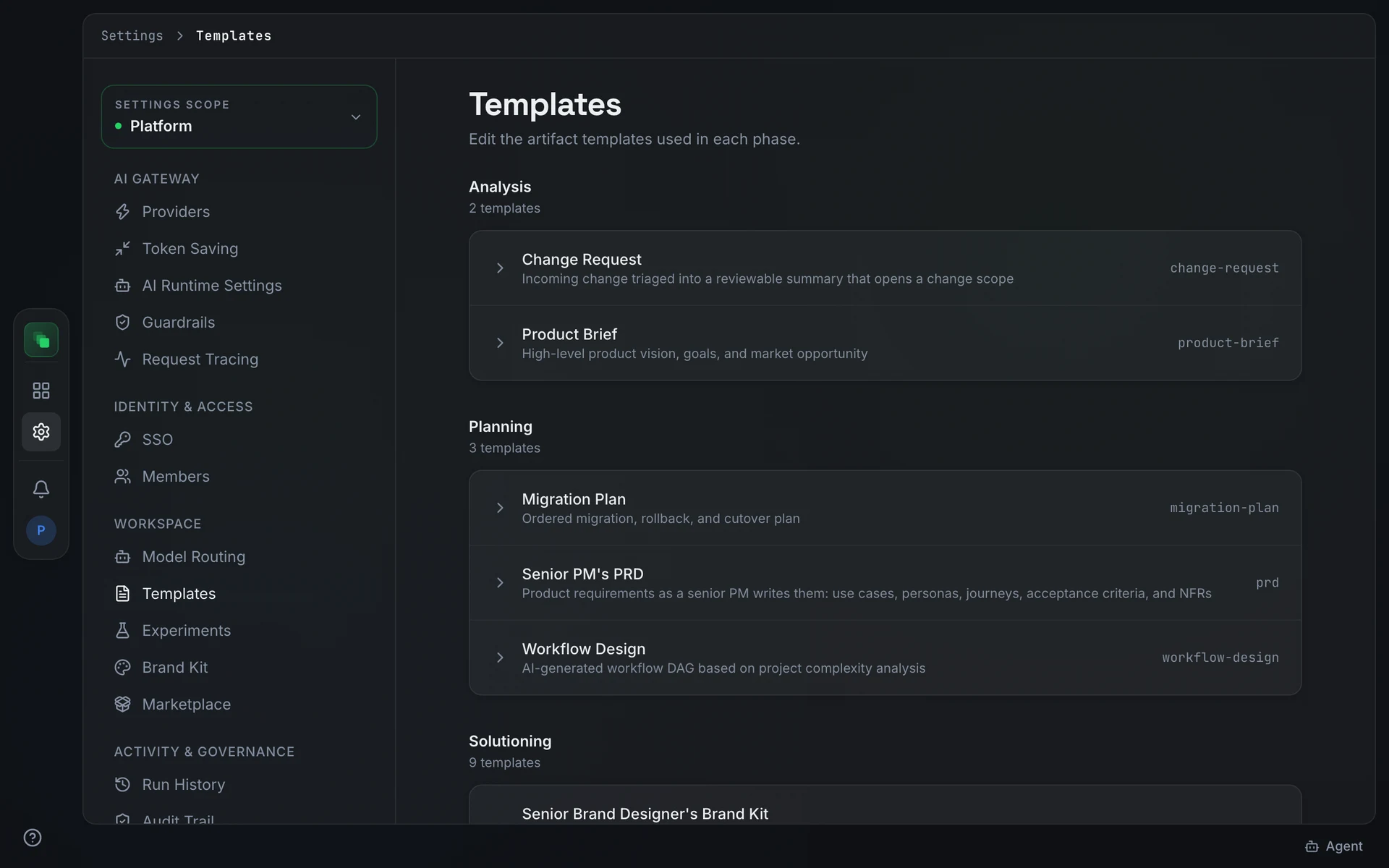
Browse templates
Open Settings → Templates ("Edit the artifact templates used in each phase."). Templates are grouped by phase in pipeline order: analysis, planning, solutioning, implementation. Each group shows a count of the templates it contains.
Select a row to expand it. The row header shows the template's human-readable name, an optional Custom badge when the template has an active override, a Platform or Project badge showing which scope owns the current override, and the template ID in monospace.
Edit and save an override
The expanded row shows the current effective text in a monospace textarea. Edit the content and press Save Override to apply it at this scope. The Discard button appears when the textarea content differs from the effective value; press it to drop the edit without saving.
Reset to default
When an override is active, a Reset to Default button appears alongside Save Override. Press it to remove the override at this scope and restore the inherited value: the manifest default at platform scope, or the platform value at project scope.
Next steps
- Marketplace: manage the packs that templates draw on.
- Brand Kit: set the logos, colors, and fonts that generated outputs inherit.
- Settings overview: the platform-to-project settings inheritance model.