
Presentations
A presentation is an on-demand artifact created from project chat. Ask the agent for slides and it creates a presentation artifact (display ID PRES-n), researches the project's knowledge base, and builds a JSON deck spec with a layout per slide, placeholder fills, charts, tables, diagrams, and speaker notes. The backend renders the spec into an editable PowerPoint file using your uploaded template or a 16:9 default.
Create a presentation
Open the project chat and ask for a deck, for example: "Create a six-slide pitch deck for the steering review." The agent opens (or reopens) the presentation artifact and returns a build when the slides are ready. You can ask for changes in the same chat: each build replaces the previous one and increments the build number in the toolbar.
The presentation page
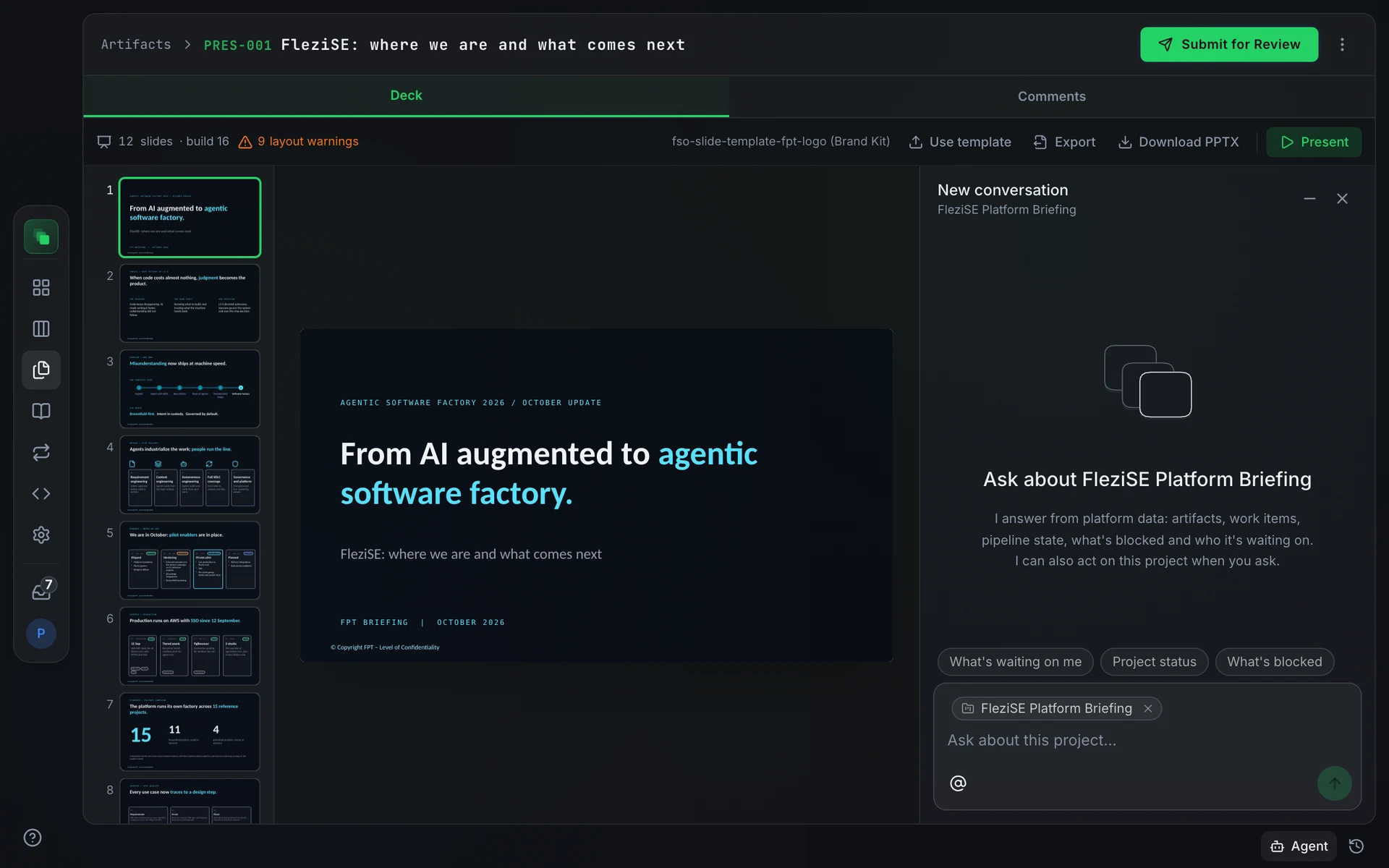
The toolbar shows the slide count and current build number. The slide rail on the left lets you jump between slides. The project chat is docked on the right; minimize it with the chat button if you need more space.
Outline and looks
Before building slides, the agent can save an outline and two to four visual looks. When an outline is ready, an Outline card appears above the slide area with a numbered slide list and a Build this deck button. When looks are ready, a Pick a look row shows cover thumbnails; clicking one posts the selection into the chat and kicks off a build in that style.
Template
The deck is built in whichever template applies first: the deck's own template (set via Use template), then the project template, then the platform template from the Brand Kit, then the 16:9 default. The agent keeps the template's colors and fonts unless you ask for a different look. Uploading a new template and asking the agent to rebuild picks up the change.
Export formats
Press Again in the export menu to re-export after the agent rebuilds the deck. Each re-export replaces what Download returns.
Present mode
Press Present to play the animated HTML export full screen from the current slide. Arrow keys or a click step through builds and slides. Press N to show speaker notes. If no export exists yet, the mode begins with still slides while the export is prepared in the background.
FAQ
How do I change the slide count or order?
Ask in the project chat: "Move the market overview to slide two" or "Add a closing slide with next steps." The agent updates the deck spec and rebuilds.
The slide thumbnails are blank after a new build.
The preview is a PDF rendered by the export worker. If the build finished but no preview appears after a page reload, the worker may still be converting. Wait a few seconds and reload.
Next steps
- Export an artifact: re-export, download, and format details
- Brand Kit: upload a slide template at the project or platform scope
- Artifacts overview