
Confluence
Confluence connects Flezise to your Atlassian site so the knowledge base stays in sync with your team's pages and so the builder agent can react when documentation changes.
Connect
Go to Project Settings → Integrations → Confluence. If OAuth is available on your deployment, press Connect to open the authorization popup. The app requests these Atlassian scopes:
After authorization, the platform calls the Atlassian accessible-resources endpoint to discover which Confluence sites the account can access (the post-exchange step). If the account has access to more than one site, a Choose your Atlassian site picker appears. Select the site this connection should use and press Save site.
If OAuth is not available, press Connect with token and enter the fields:
After a successful credential test, a Space Key field appears. Enter a space key (for example ENG) to scope the connection to that space. Leave it blank to sync all spaces the account can access.
Capabilities
Configuration
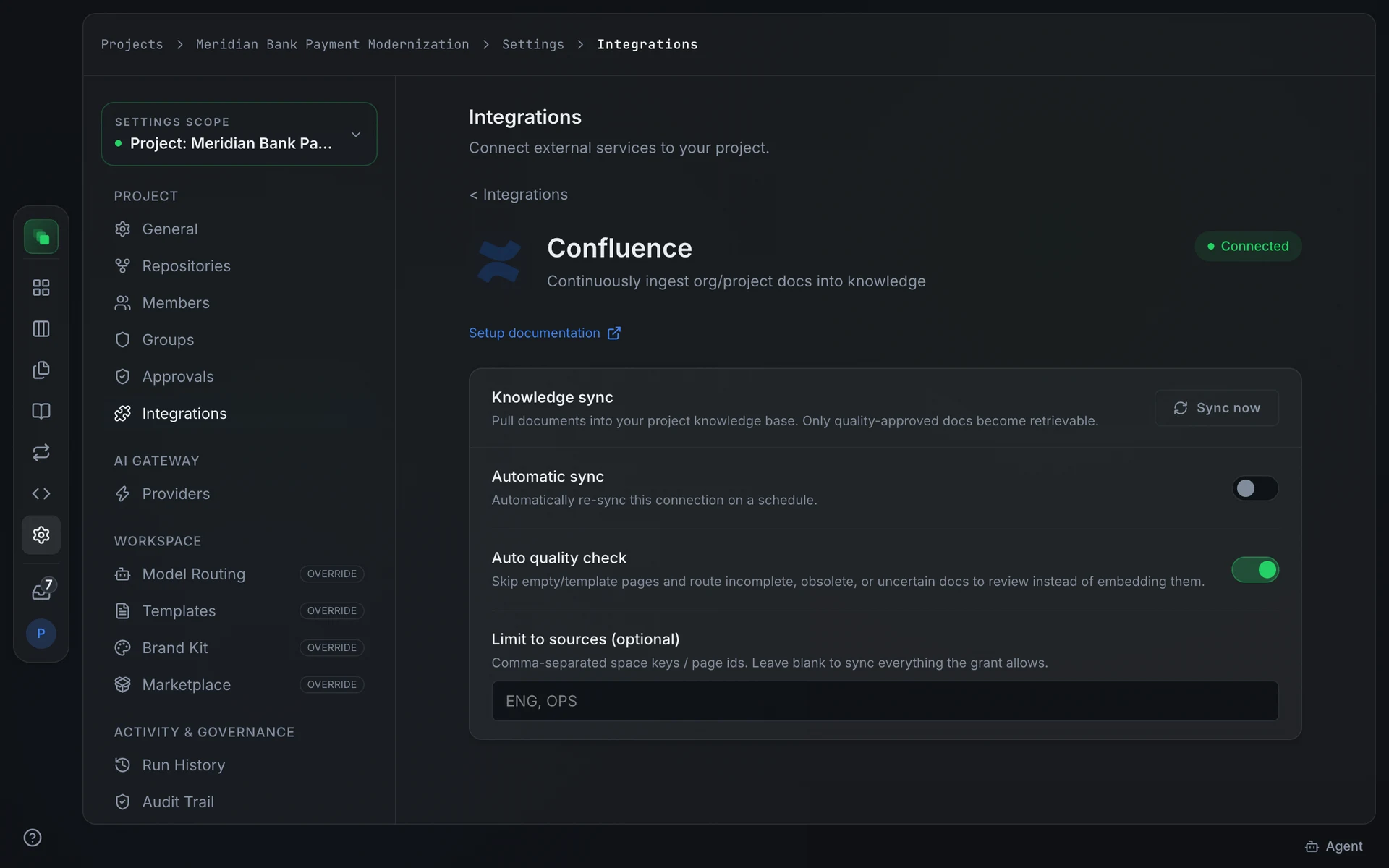
The Knowledge sync card on the integration detail page controls how and when pages are pulled.
Press Sync now to start an immediate sync. The card shows the timestamp of the last completed sync.
Automatic sync is off by default. Enable it and choose a frequency from the Sync frequency selector:
Auto quality check is on by default. It skips empty or template pages and routes incomplete or uncertain documents to review rather than embedding them directly into the knowledge base.
Limit to sources (optional) accepts a comma-separated list of space keys or page IDs (for example ENG, OPS). Leave it blank to sync everything the account grant allows.
When a page changes in Confluence, the next sync adds a new version to its document rather than overwriting it, so View Changes shows what changed. A change the quality check holds back waits In Review while the previous text stays in the knowledge base. When a page is deleted in Confluence, the next sync marks its document superseded and removes it from the knowledge base; a sync only does this when it read every page, so a connection limited to fewer pages than the space holds never removes any. See Records of a source.
The Inbound events card carries an Allow work-item triggers toggle. When it is on, page events from Confluence can create work items, subject to the project automation policy.
Events
Both events pass through the classifier. If Allow work-item triggers is on and the automation policy permits it, the event can create a work item. They also trigger an incremental knowledge sync for the changed page.
Next steps
- Integrations overview: the full provider catalog and capability chips
- Work the board: manage work items that page events create
- Audit trail: every triggering event is recorded here