
Create an artifact
Two paths exist for adding an artifact: New Artifact launches a full-screen session where the builder agent generates the document from a prompt, and Upload imports a file you already have.
New Artifact
Press New Artifact from the artifact list header, or choose it from the empty-state card when no artifacts exist yet. The modal opens full-screen and walks through two steps before starting the agent.
Step 1: "1. What phase is this for?" Four phase tiles appear: Analysis, Planning, Solutioning, and Implementation. Select the phase that matches where this document belongs in the pipeline.
Step 2: "2. What type of artifact?" The types available for the chosen phase appear. Each tile shows the type name and a short description. Select one to proceed.
After the type is selected, the modal spins up a generation environment ("Setting up environment…") and opens the AI chat panel. Once ready, describe what you want in the chat and the builder agent drafts the artifact. As versions are generated, a preview panel appears beside the chat so you can read and edit the content before saving.
Press Back at any time to return to the phase or type selector. Press Cancel to close without saving.
A New Artifact shot is needed here. Proposed id: new-artifact-modal. What it shows: the two-step phase/type selector inside the full-screen modal, with a phase selected and the type grid visible.
Upload Document
Press Upload in the artifact list header to open the Upload Document dialog.
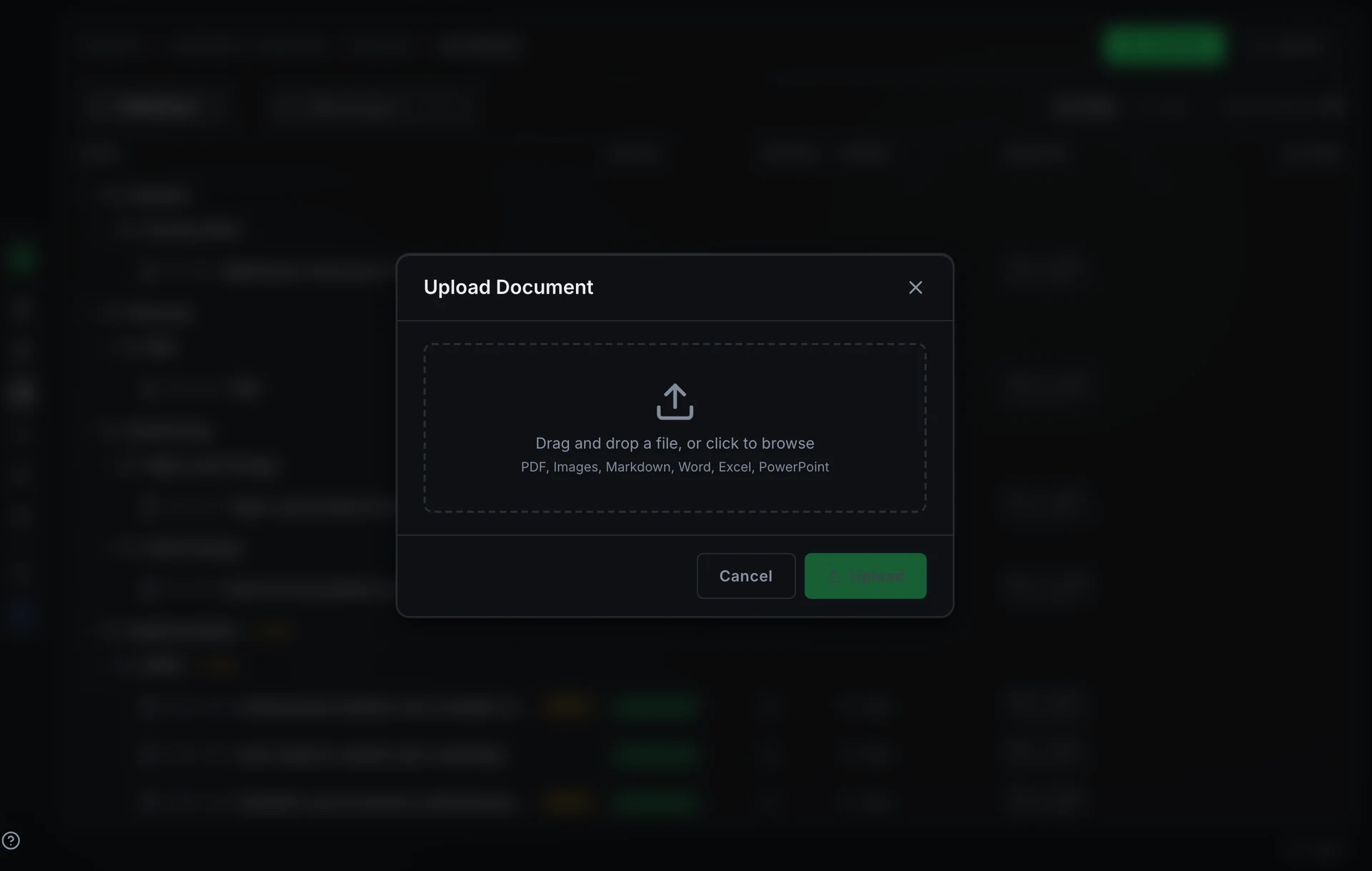
Drag a file onto the drop zone or click it to open the file picker. The dialog accepts PDF, images, Markdown, Word, Excel, and PowerPoint files, as well as plain text, CSV, JSON, YAML, and XML.
Once you select a file, a Document Title field appears with the filename pre-filled (without the extension). Edit the title before uploading; it is the name that appears in the artifact list and in the knowledge base.
Press Upload to save. The document becomes a draft artifact of type uploaded-document.
FAQ
Can I upload multiple files at once?
No. The dialog accepts one file per upload. Open it again for each additional document.
What happens after I create an artifact?
The artifact starts as a Draft. Submit it for review when it is ready. See Submit for review.