
Runs and history
Open Automations in the project sidebar and select an automation to open its detail panel. The panel shows the schedule, enable toggle, action buttons, and a Run history list on the left; selecting a row opens the run detail on the right.
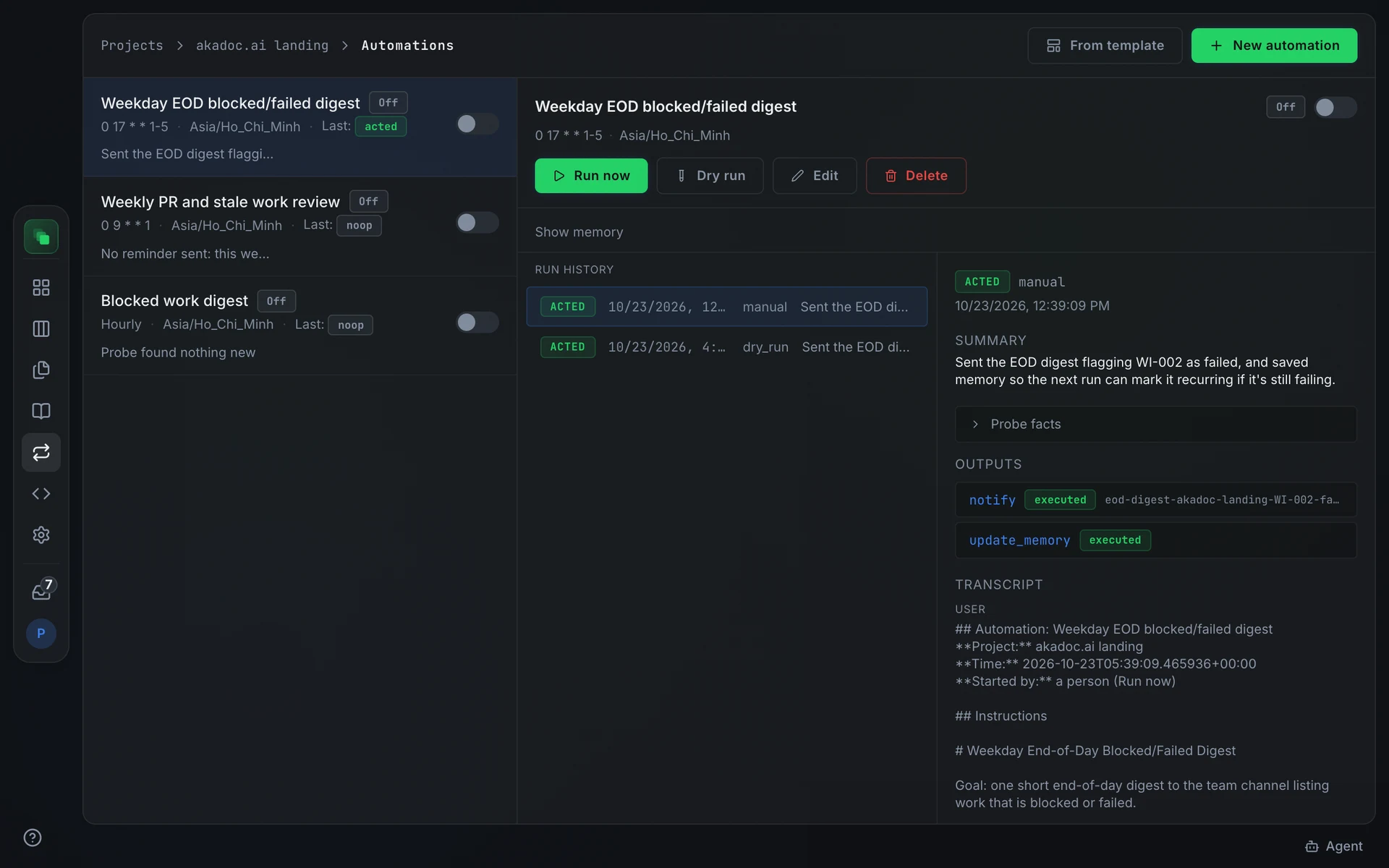
Run history
Each row in the list shows the run's status badge, the time it was scheduled for (or created, for manual runs), the trigger (schedule, manual for Run now, dry_run for Dry run), and the run summary. The newest run is at the top.
Select a row to open the run detail beside the list. Select it again to close the detail.
Run detail
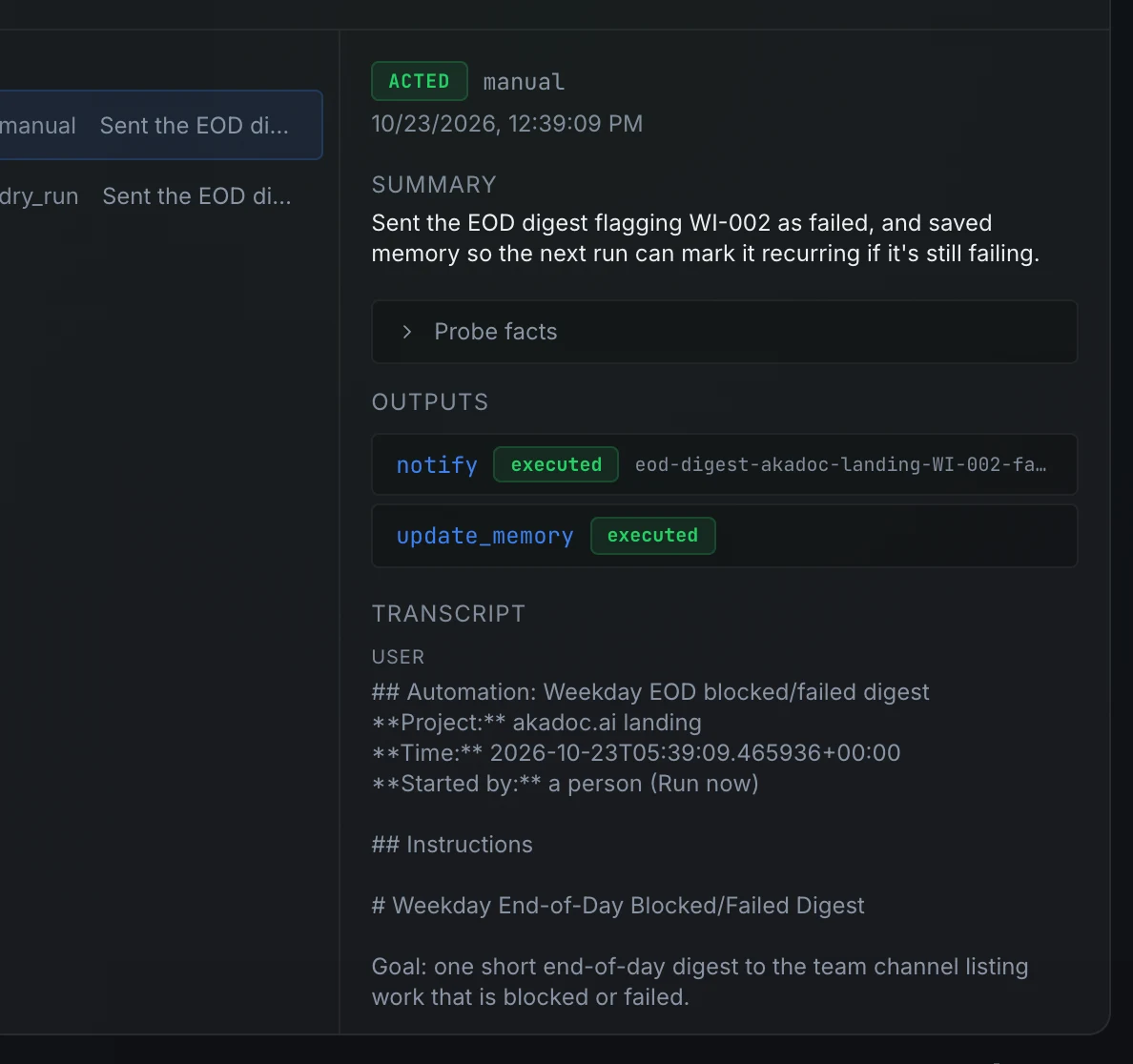
The run detail shows:
- Status badge and trigger.
- Summary: one or two sentences the agent wrote describing what it found and what it did.
- Error: present only on
failedruns; shows the error message. - Probe facts: available when the
blocked_workprobe ran; a collapsible view of what the probe found. - Outputs: each output the agent requested, its kind, and whether it was
executed,recorded(dry run ornoop), orrejected(over cap or no destination). The delivery summary shows where anotifylanded. - Transcript: the agent's full conversation, including tool calls with their inputs and results. Each tool call is collapsible.
Run now
Press Run now in the detail header to start an immediate run outside the schedule. The button is disabled while a run is active. The new run appears at the top of the history list and the detail opens automatically.
Dry run
Press Dry run to start a run that records what would happen without sending notifications, creating work items, or updating memory. The outputs show as recorded instead of executed. Use it to verify instructions before enabling an automation, or to see what a run would do before triggering a live one.
Acknowledging needs-attention runs
A run that ends in needs_attention becomes a pending action for members who can configure the project pipeline, for up to seven days or until acknowledged. Open the run detail and press Acknowledge to mark it reviewed. Acknowledging does not change what the run did; it records that a person has seen the issue.
Pause and resume
An automation can be in one of three states shown in the detail header:
Toggle the switch in the detail header to enable or disable an automation. A Paused automation shows a yellow banner with the reason. Fix the issue in the instructions or schedule (press Edit), then re-enable it.
Memory
An automation keeps a short text note (up to 4,000 characters) across runs. The agent writes to it by calling update_memory; the note arrives at the start of the next run. Memory is useful for watermarks ("last run processed items up to ID 42") and tracking state across runs ("WI-7 has been stuck for two runs").
Press Show memory in the detail panel to read the current note. Updating the instructions keeps the memory; replace or clear it from the CLI:
A dry run does not write to memory, even if the agent calls update_memory.
Edit and delete
Press Edit to open the edit form. Changes to the instructions create a new revision; run history and memory are preserved. Press Delete to remove the automation and all its run history permanently. Deletion cannot be undone.
Next steps
- Create an automation: form fields, templates, and the CLI workflow.
- Automations overview: run lifecycle, output caps, and schedule rules.
- Inbox: where automation notifications land and how to read them.