
Approve an artifact
Every artifact in In Review must pass one or more approval levels before it becomes Approved. Approval unlocks downstream generation and indexes the artifact into the knowledge base.
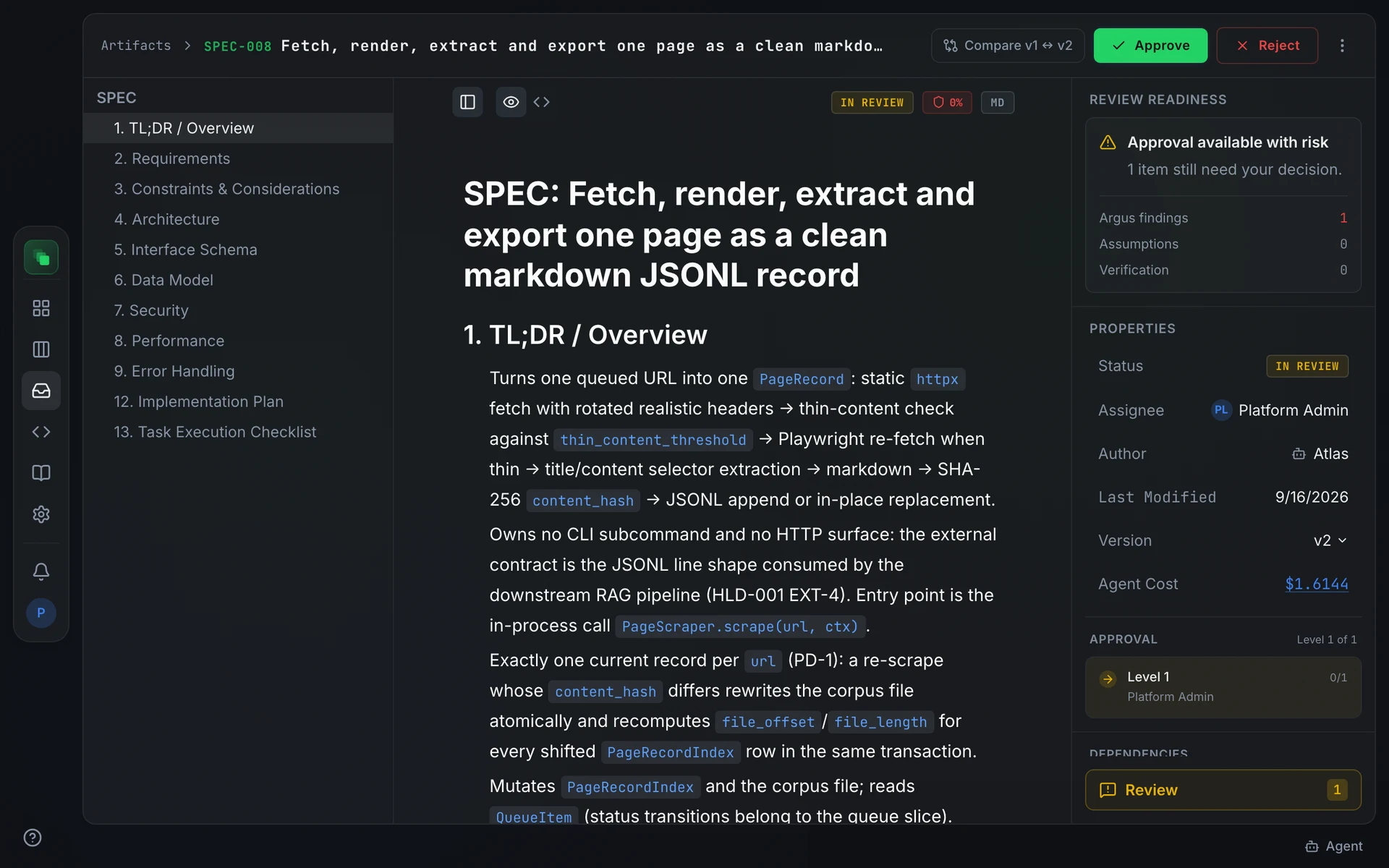
Approve or reject
When an artifact is In Review, Approve and Reject appear at the top right of the header bar. Either button opens a confirmation popover with an optional comment field. Press Confirm Approve or Confirm Reject to act; a stray click on the button does nothing.
Reject creates a new draft version from the reviewed content and moves the artifact back to Draft. The reviewed version stays in the version history; the author's next submission becomes the next version.
Request Changes is in the ⋮ overflow menu. The artifact moves to Revise and the author edits the same version in place, then presses Resubmit for Review. Use it when the document is broadly right and needs a targeted fix rather than a full re-draft.
Multi-level approval
If the project has multiple approval levels configured, the artifact stays In Review until the last level signs off. Each level has its own set of configured approvers and a required vote count. When all levels pass, the artifact becomes Approved and any downstream documents begin generating.
The Approval section in the right-hand sidebar shows which level is active and how many votes it still needs.
Who can approve
Project approval is configured in Settings → Approvals. Each artifact type maps to one or more approval levels, and each level assigns approvers by role. The assignable roles are:
When a level has no eligible approvers configured, it is left open and any user with approve permission can act. This keeps a short-staffed project from deadlocking.
Members assigned the Project Admin role can approve at any level they have not already voted at, regardless of the configured role assignment.
Why Approve is disabled
A disabled Approve button means something is blocking your turn. Hover it to read the exact reason:
When the artifact is in Revise status, the button is shown as disabled and labeled Resubmit for review first. The author must resubmit before the review flow resumes.
FAQ
Does approving an artifact create work items?
No. Approving dispatches the next documents in the pipeline. Work items come from integrations, the board, the repository scan, or onboarding. See Work the board.
Can Atlas approve for me?
Only when you tell it to. The builder agent acts with your permissions, asks for confirmation before it approves or rejects anything, and every action is recorded under your name.