
Uploading documents
Uploaded documents are indexed into the knowledge base immediately, without an approval step. You can upload from the artifacts list or attach files directly in Atlas chat.
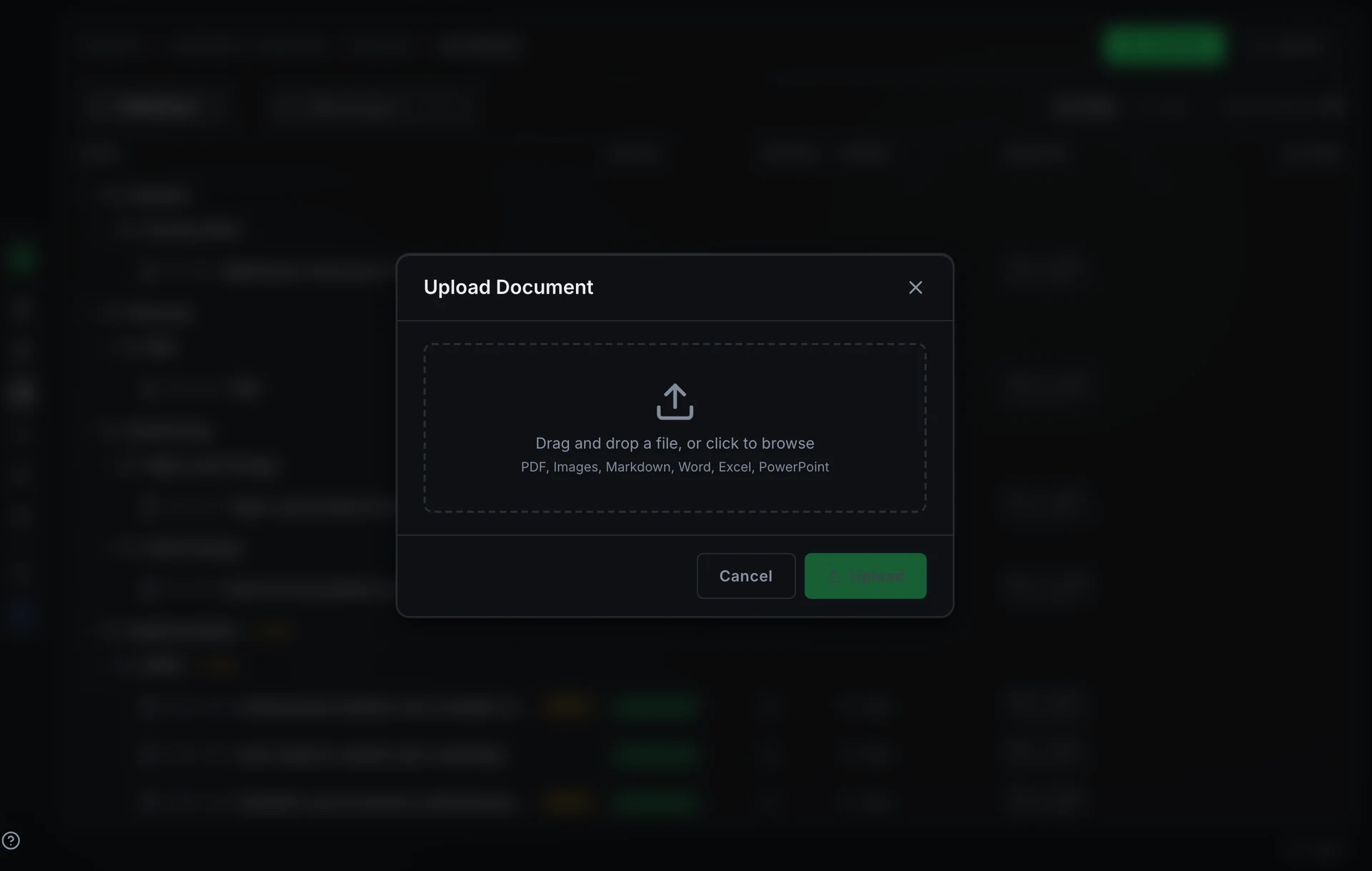
Upload from the artifacts list
Open Artifacts in the project sidebar and press Upload. The Upload Document modal opens. Drag a file into the drop zone or click to browse, add an optional title, and press Upload. The document appears in the artifact list and is available in the knowledge base.
Attach in Atlas chat
Attach a file directly in the Atlas chat input. Each attachment is ingested through the same path as a manual upload.
Update an uploaded file
An uploaded document mirrors its file, so it has no New Version and its text cannot be edited. When the file changes, open the document, choose Replace File from the overflow menu (⋮) and pick the newer file. It becomes the next version of the same DOC-n: links and documents that depend on it keep pointing at it, the knowledge base re-indexes it, and the earlier file stays in the version history. Uploading the newer file from the artifacts list instead would add a second document next to the old one.
Accepted formats
Uploads fall into two categories based on extension.
Text formats (.md, .txt, .csv) are stored inline as artifact content and indexed for both search and RAG immediately. No background processing is required.
Binary formats (.pdf, .docx, .xlsx, .pptx, .png, .jpg, .jpeg, .svg) are saved to disk and sent to a background worker for parsing and embedding. Images are processed through a captioning step so their content becomes searchable.
Audio and video files (.mp3, .wav, .mp4, .mov, and similar) are not supported. Uploading one sets the normalization status to unsupported and the file is not indexed.
Normalization status
Each uploaded document carries a normalization status that reflects where it is in the ingestion pipeline.
Batch upload
The API supports uploading multiple files in one call via POST /projects/{id}/documents/batch. Each file in the batch is processed independently and returns its own status.