
Automations overview
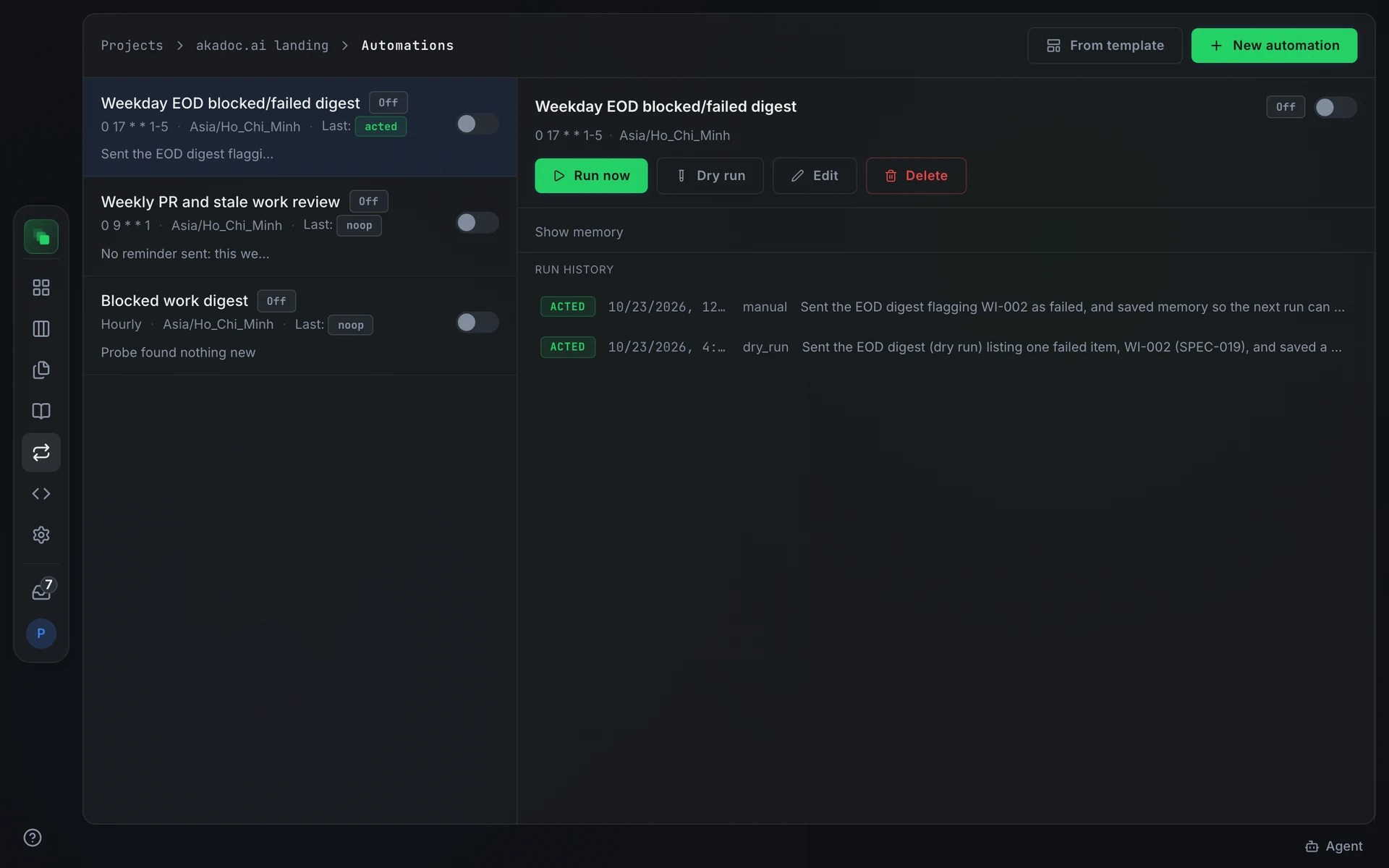
An automation runs an agent inside one project, either on a cron schedule or each time one of the project's integrations sends a chosen event. Each run starts a fresh, unattended agent session. The agent reads its instructions, checks the project, and records what it found and what it did. No human has to be online for it to run.
Automations are an opt-in feature. If the Automations item does not appear in your project sidebar, ask your administrator to enable it.
What a run can do
A run is limited to the outputs below. Each output kind has a per-run cap you set when you create the automation; the cap defaults are shown here.
A run never approves anything.
Tools
By default a run sees only its instructions, its memory and probe findings. Give an automation the tools its job needs:
Flezise always pushes a pull request to the run's own branch and never to the default branch. Protect the default branch on your Git host as a second safeguard.
A dry run with MCP servers calls only the tools that the server marks read-only.
Deduplication
notify accepts an optional dedup_key; create_work_item and open_pull_request require one. If the same key appears in a later run, the output is recorded but not sent or created again. A notify that reaches no destination is recorded as rejected, does not consume its key, and does not count toward the cap. A pull request that fails to open does not consume its key either.
How a run proceeds
- Probe (optional)
- Agent runs
- Outputs recorded
- Terminal status
Probe. When an automation has the blocked_work probe enabled, a fast check runs before the agent. It looks for work items that became blocked or failed, stalled implementations, and failed pipeline runs since the last run. If it finds nothing, the run ends as noop without starting the agent at all.
Agent runs. The agent receives its instructions, the current date and time, and any memory the previous run left. It reads project data through platform tools and calls output functions to act.
Outputs recorded. Each output the agent requests is validated against the automation's caps, executed (or rejected if over cap or if a destination is missing), and saved on the run. Idempotency is enforced: a replayed call returns the stored result.
Terminal status. When the agent finishes, the run ends in one of the statuses below.
Run statuses
While a run is in progress it shows an active status, queued or running (the API also reports brief dispatching and collecting phases a CLI user may see). Active statuses resolve to one of the terminal statuses above.
Overlap and auto-pause
If a run is still active when the next scheduled fire is due, that fire is recorded as skipped. Scheduled runs do not queue behind each other. Event runs do: each event waits its turn, up to 20 per automation.
Three consecutive failed scheduled or event runs disable the automation and record why in a Paused badge. Fix the instructions or trigger, then re-enable the automation from the detail panel.
Schedule
Automations use a five-field cron expression evaluated in a chosen timezone. The minimum interval is hourly. With the blocked_work probe enabled, every 15 minutes is allowed.
Presets in the form cover the most common intervals: Every 15 minutes, Hourly, Every 2 hours, Daily 09:00, Weekdays 09:00. Select Custom cron to enter any valid expression.
A jitter of up to a minute is added to each fire time so automations sharing a cron time do not all start at the exact same second.
Event triggers
An event-triggered automation runs once for each matching event from one of the project's integrations. The run receives the event (its title, text, author, link, and channel or labels) alongside its instructions.
Flezise decides whether an event starts a run before any agent is involved:
- Event and filters. The event must be the chosen one, in one of the chosen channels or carrying one of the chosen labels. The channel and label lists come from the connected account. Leave a filter empty to accept every event of that type.
- Condition. An optional sentence such as "the message reports a defect in our product" is checked by System One, a fast decision model, in one request for all of the project's automations that matched the event. An event that does not meet the condition leaves no run behind. If System One cannot be reached, the run is recorded as
skippedwith the reason. Conditions need System One switched on by an administrator. - Authors and repeats. Comments and messages written by bots, including the builder agent's own replies, never start a run, and an event delivered twice starts only one.
Notification destinations
Each automation sends notify outputs to its own destination list, configured when you create or edit it.
- Project inbox: every active project member gets an inbox item linking to the run.
- Slack or Teams channels: any of the project's active chat connections, each with an optional channel override. If no channel is specified, the connection's default notify channel is used. A connection without a default requires a channel to be set.
Run swecli automation targets to list the project's connections and their defaults.
Next steps
- Create an automation: from a template, from scratch, or by asking the assistant.
- Runs and history: run history, outcomes, dry runs, and memory.