
Create an automation
Open Automations in the project sidebar, then press New automation or From template. Every new automation is created switched off: configure and dry-run it before you enable it.
From a template
Press From template to open the form pre-filled with a ready-made starting point. The template provides a schedule, instructions, and output caps; you can change any of them before saving.
The Blocked Work Digest template, for example, runs hourly with the blocked_work probe enabled. It sends one grouped digest per run and flags items that stay stuck across multiple runs. Enable it as-is or adjust the schedule and instructions first.
Run swecli automation templates to see every available template.
From scratch
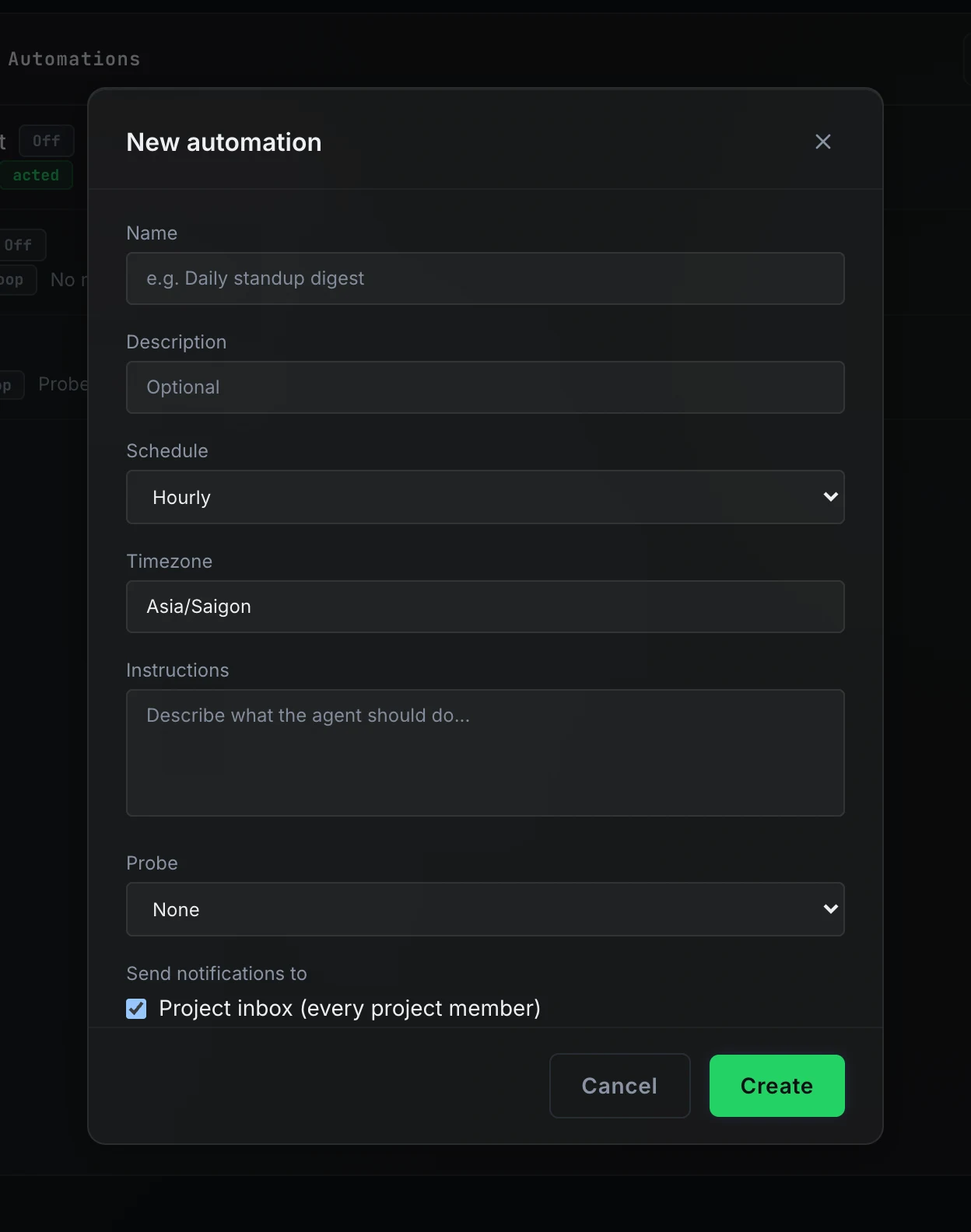
Press New automation to open a blank form.
Name and description
Give the automation a name (required, up to 120 characters) and an optional description. The name appears in the list and in inbox notifications.
Trigger
Choose Schedule to run on a cron schedule, or Event to run each time one of the project's integrations sends a chosen event.
Event
With Event selected:
- Pick the Integration: any connected GitHub, GitLab, Slack, Microsoft Teams, Linear or Jira integration of the project.
- Pick the Event, such as Issue opened or Message posted in a channel.
- Optionally tick Channels or Labels. The lists are read from the connected account; leave them empty to accept every event of that type.
- Optionally fill in Only run when with a sentence the event must meet, such as "the message reports a defect in our product". System One checks it before any agent starts. The field is disabled while System One is switched off.
An event-triggered automation has no probe: the event is what the run acts on.
Schedule
With Schedule selected, pick a preset or select Custom cron to enter a five-field cron expression. The minimum interval is hourly. With the blocked_work probe, every 15 minutes is allowed.
Set the Timezone to the IANA name for your location, such as America/New_York or Asia/Ho_Chi_Minh. The form defaults to your browser's timezone.
To check that a cron expression is valid and see its next fires:
Instructions
Write what the agent should do on each run. Be specific: name what to check, which output to use in each case, and when to call noop. A well-written instruction set is shorter than you expect. The agent reads it fresh on every run alongside any memory the previous run left.
Probe
None (default) runs the agent every time. Blocked work runs a fast check first: if nothing is blocked, failed, or stalled since the last run, the run ends as noop without starting the agent. Use the blocked_work probe when your instructions react to project problems, to avoid agent runs when there is nothing to act on.
Notification destinations
Under Send notifications to, choose where notify outputs are delivered.
- Project inbox (every project member): on by default. Every active project member receives an inbox item linking to the run.
- Slack or Teams connection: check one or more of the project's connected chat apps. Each connection shows its provider. If you leave the channel field blank, the connection's default notify channel is used. A connection without a default needs a channel ID.
If notify is allowed (cap greater than zero) but no destination is checked, the form warns you and the API rejects notify outputs at run time.
Run swecli automation targets to list the project's connections and their IDs.
Tools
Under Tools, check what the agent may use besides its outputs. Leave them all unchecked for digests and other checks that only read the project.
- Repository: its own checkout of the project repository on a fresh branch. Needed for pull requests. In a project with several repositories, the run checks out the one its name or instructions name, such as "check the saleor repository"; name exactly one.
- Shell commands: run commands in that checkout. Checking it also checks Repository.
- Web: search the web and read pages.
- MCP server NAME: one entry per MCP server added under Settings, Integrations, MCP servers.
Run swecli automation mcp-servers to list the project's MCP servers and their IDs.
Output caps
Four numeric fields control what the agent may do per run. Set a field to 0 to disable that output kind.
Setting Max work items above zero means each run may file up to that many work items, which the work-item pipeline then triages and implements. Leave it at 0 unless you intend the automation to create code changes.
Max PRs is available only with the Repository tool, up to 3. Each pull request carries what the run changed in its checkout and links back to the run. A routine pull request stays small: docs of any size, or one code file with under 50 changed lines. It never changes dependency manifests, lockfiles, CI, migrations or infrastructure. For a bigger change, such as upgrading a dependency, let the automation file a work item with Max work items instead: the work item goes through triage, plan approval and checks like any ticket.
Timeout and model
Timeout (minutes) caps how long the agent session runs, from 1 to 60 minutes. The default is 10 minutes for automations created in the form; adjust it up for automations that read many artifacts, or down for simple checks.
Model is optional. Leave it blank to use the project's default chat model. To override, enter a gateway model id such as cc/claude-haiku-5-5. Ask your administrator which model ids are available.
From the assistant
Ask the project assistant to set up an automation in plain language: "Send a digest every morning with anything that is blocked." The assistant translates the request into the right swecli automation commands, previews the schedule, asks for confirmation, and enables the automation only after you approve.
The assistant always creates automations switched off and offers a dry run before enabling. See Atlas assistant.
After you save
The automation appears in the list with status Off. Before enabling it, run a dry run from the detail panel or the CLI to verify what it would do:
A dry run records every output and shows exactly what would have been sent or created, without sending, creating, or updating memory. When the results look right, enable the automation:
- Toggle the switch in the detail panel, or
- Run
swecli automation enable "my automation".
Using the CLI
The full create workflow from the terminal:
Next steps
- Runs and history: run history, outcomes, pause and resume, memory.
- Automations overview: how runs proceed and what they can do.