
Runs
A run is the record of one dispatch from the pipeline. Each time the pipeline dispatches a generation or implementation job, it creates a run. Find them at /projects/<project>/runs. Navigate there directly from the URL, follow the link from a failed_run pending action, or open Project Settings and choose Run History.
Run statuses
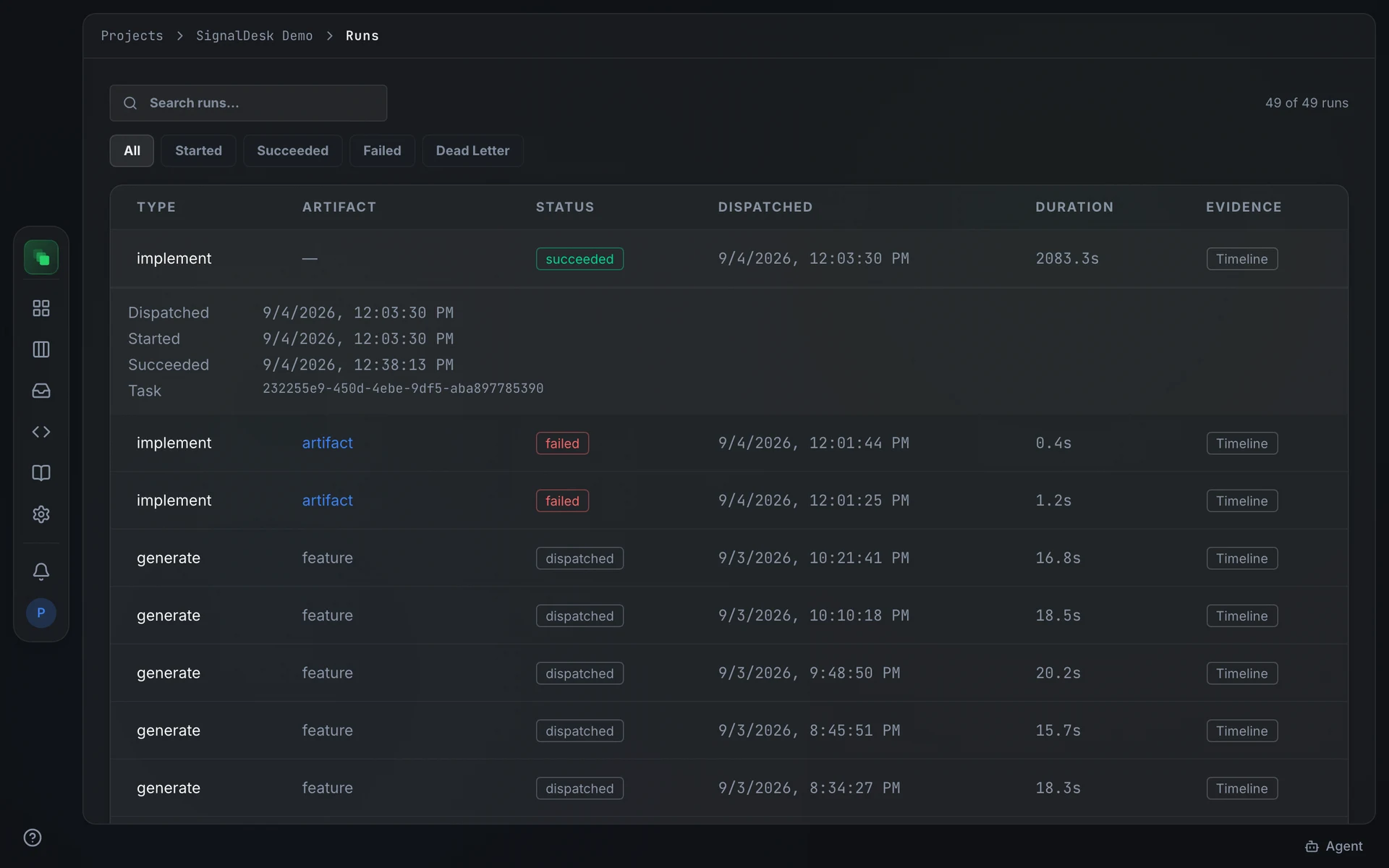
The filter pills at the top of the list are All, Started, Succeeded, Failed, and Dead letter. Runs with status Dispatched appear only under All.
The API values for swecli and filter queries are dispatched, started, succeeded, failed, and dead_letter.
The runs table
The table shows six columns: Type, Artifact, Status, Dispatched, Duration, and Evidence. Click a row to expand its inline timeline.
The expanded timeline shows the milestones: Dispatched, Started, and then Succeeded, Failed, or Dead-lettered depending on the outcome. Below the milestones, a Trigger row names what caused the dispatch and a Task row carries the queue task identifier. On a failed or dead-lettered row, View artifact event timeline → opens the artifact at its Events tab, where every step of the generation is recorded.
Run timeline page
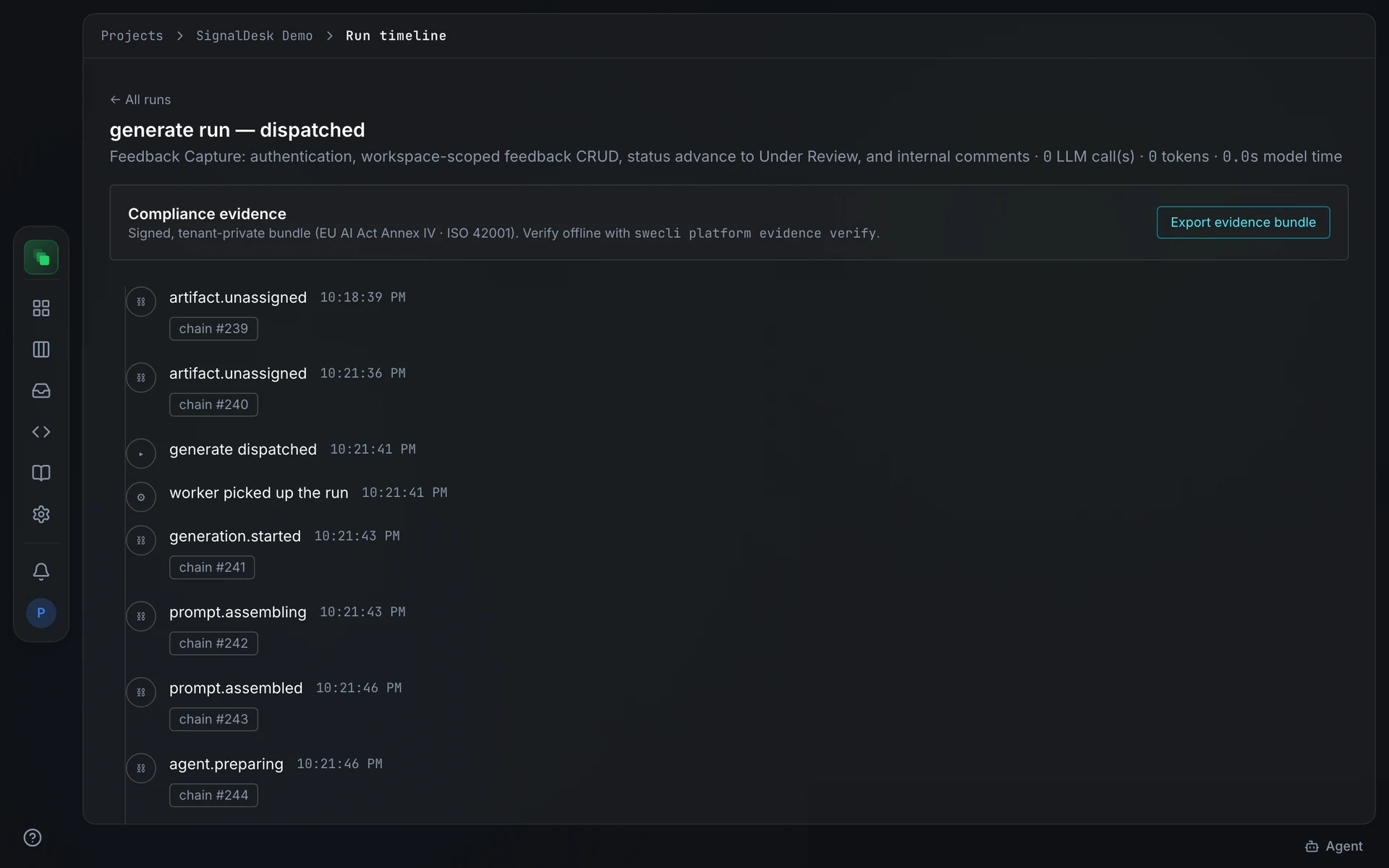
The Evidence column's Timeline link opens the full run timeline page. The heading follows the pattern <run type> run — <status> (for example, generate run — succeeded). Press ← All runs to return to the list. The page lists every recorded event of the run in order, each with its timestamp and its position in the audit chain, next to a Compliance evidence panel from which you can Export evidence bundle: a signed, tenant-private bundle you can verify offline with swecli platform evidence verify. Screenshots captured during the run can be clicked to zoom.
Dead-lettered runs
When a generation run fails repeatedly, the background sweep marks it Dead letter, stops retrying, and sends a notification to the bell feed. The notification reads Generation dead-lettered: <artifact title> with the note "will not be retried automatically. Last error: …". The artifact stays as a draft.
To restart generation after a dead-letter, use one of the methods in the retry table below.
How to retry
Retrying depends on the kind of failure.
There is no retry button on the Runs screen itself. The Runs page is a read-only history view.
From the terminal
FAQ
What is the difference between a failed and a dead-lettered run?
A Failed run stopped with an error and can be retried by regenerating the artifact or asking Atlas to re-run the node. A Dead letter run was swept after the project's failure threshold was reached. The platform will not try again automatically; trigger regeneration explicitly.
Why is there no Retry button on the Runs page?
Retries for generation failures go through the artifact: use Regenerate in the artifact's overflow menu, the DAG editor, or Atlas. The Runs page is a read-only history view.