
Project settings
Project settings live at Settings in the project sidebar. Each tab covers one area of configuration. Some tabs are project-native; others inherit from platform defaults and let you override them for this project alone.
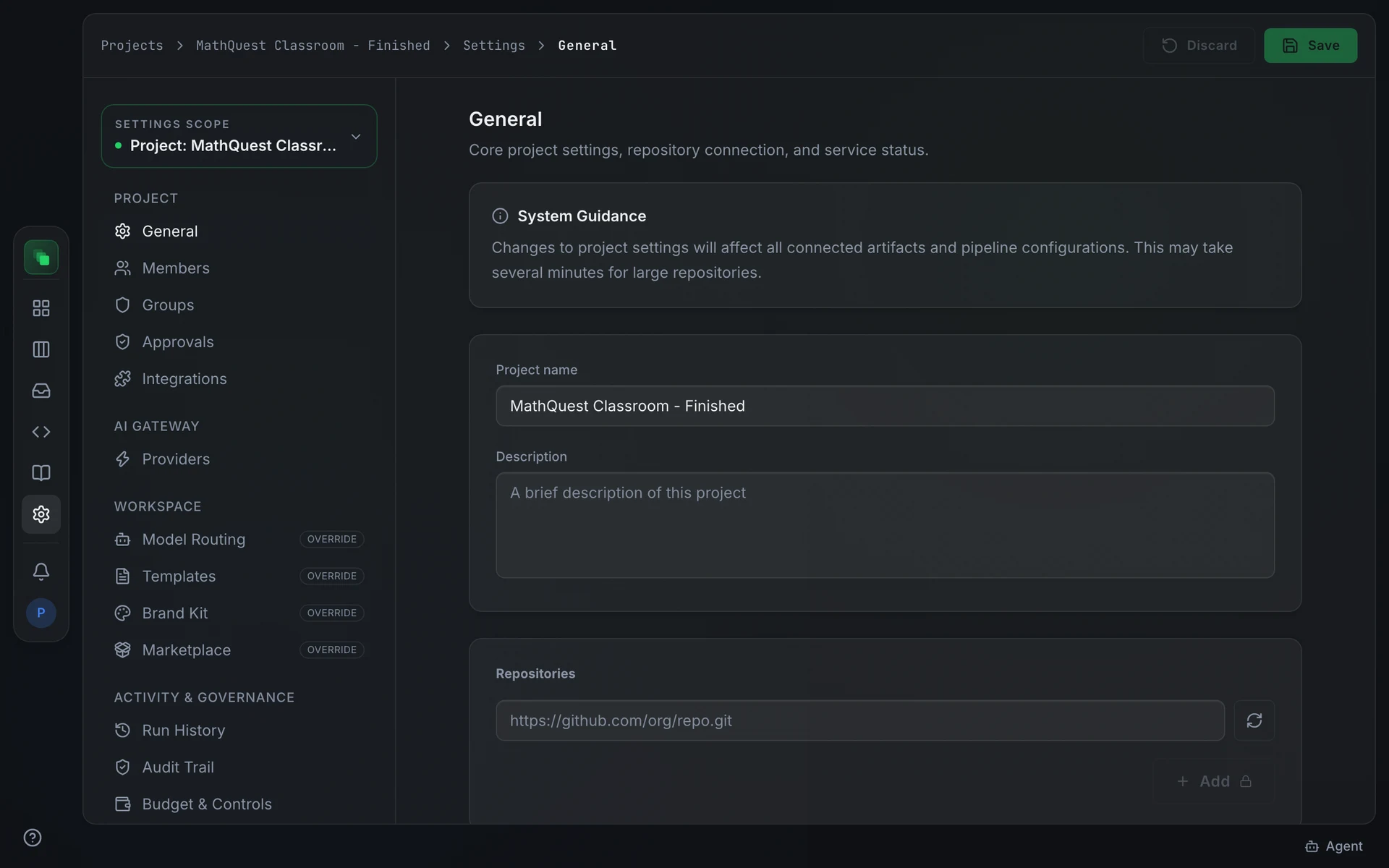
Project settings
These tabs control what is specific to this project.
General (Settings → General) covers the project name, description, and repository connection. Enter a repository URL and press the scan button to run a read-only repository scan. Changes to name and description take effect after you press Save.
Members (Settings → Members) shows who has access to the project and lets you add or invite people. Members belong to one or more groups, and groups carry the permissions.
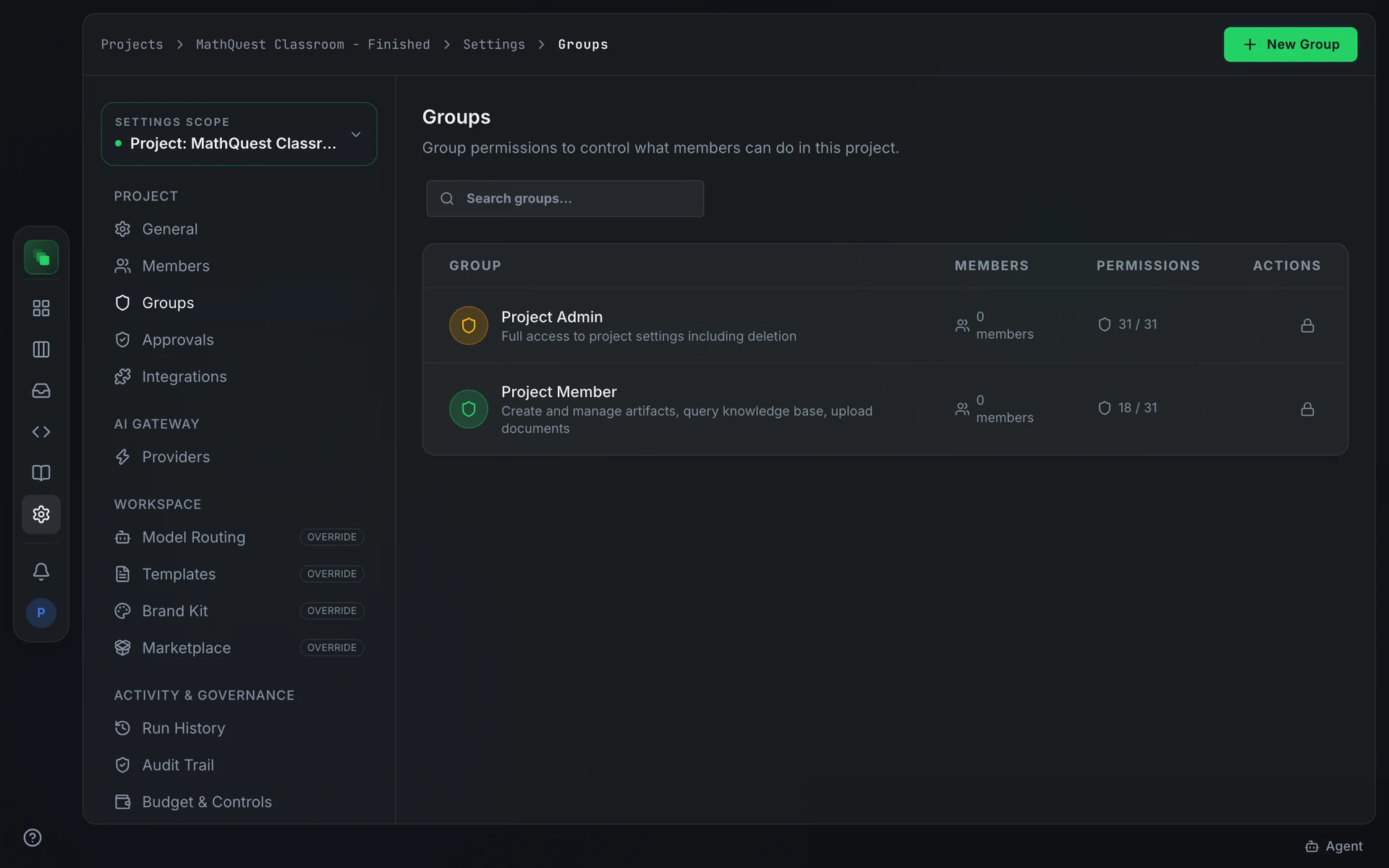
Groups (Settings → Groups) defines the permission groups for this project. Each group carries a set of roles. Assign members to groups here to control what they can do: read artifacts, approve them, manage settings, or create work items.
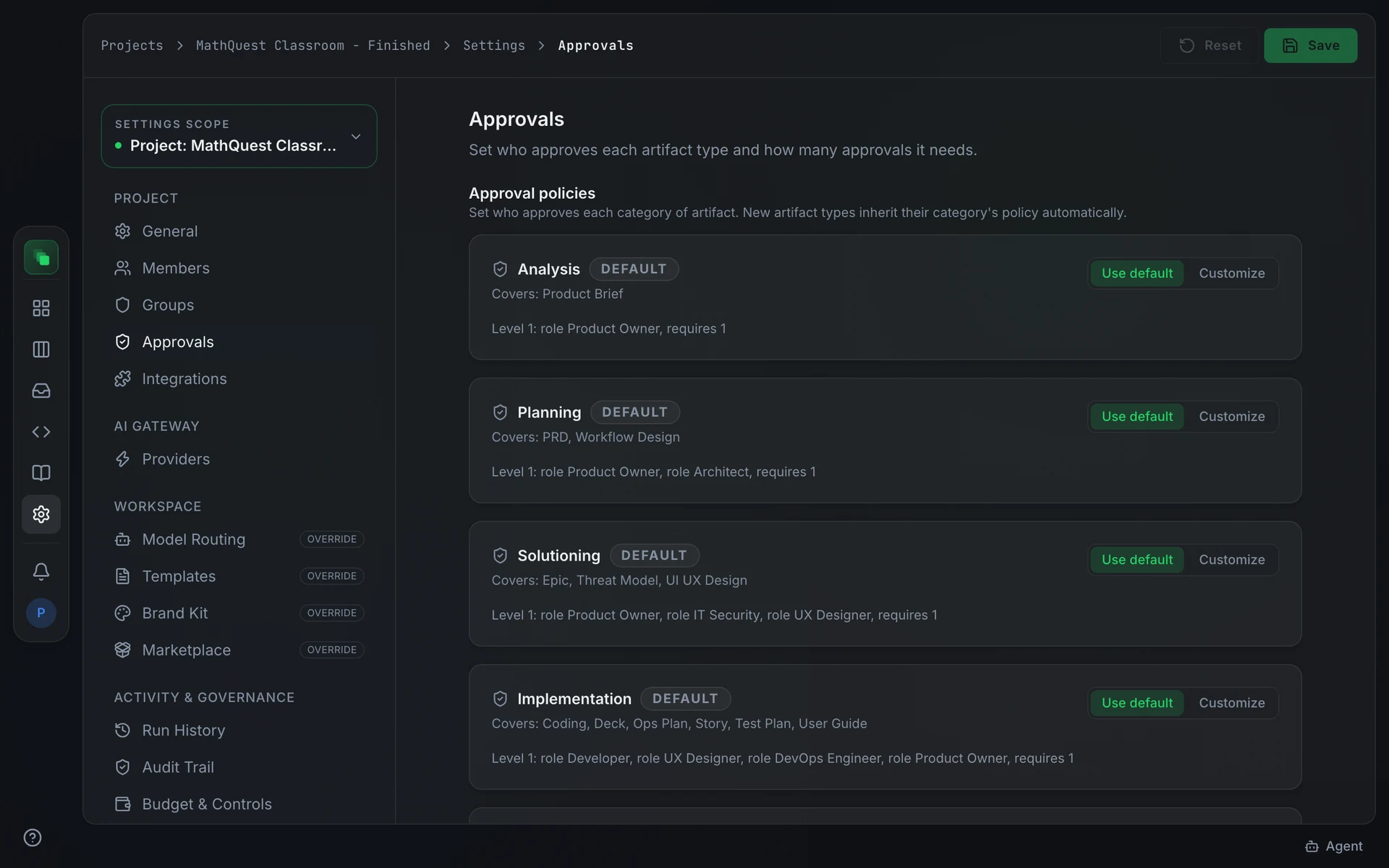
Approvals (Settings → Approvals) sets who signs off on each artifact type and how many approvals are required. You can configure a different approver group and level count per artifact type. Changes apply to new review cycles; an artifact already in review follows the policy that was active when it was submitted.
Integrations (Settings → Integrations) connects external services to this project: GitHub, GitLab, Jira, Linear, Slack, and others. Connections configured here are scoped to this project only.
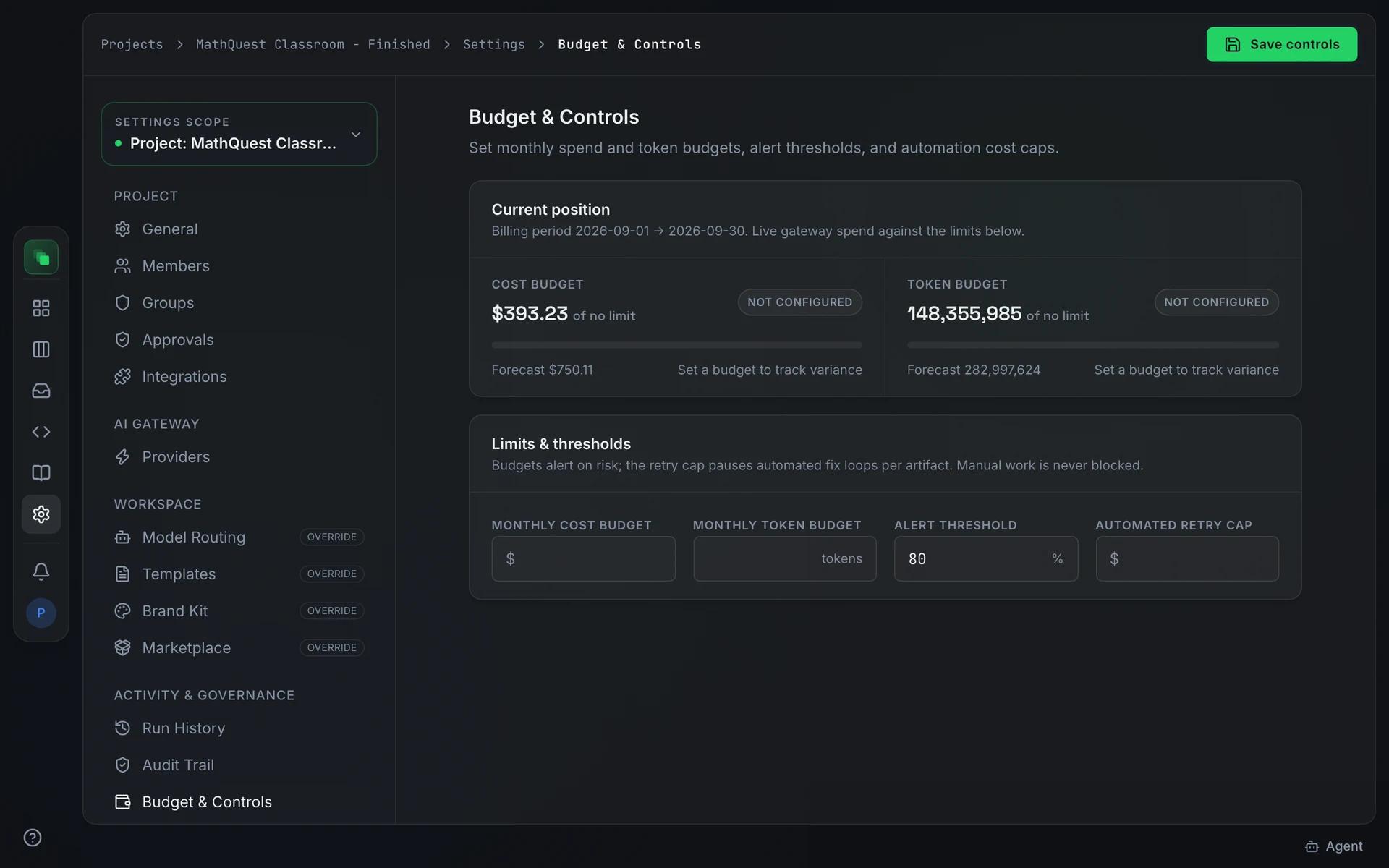
Budget & Controls (Settings → Budget & Controls) sets monthly spend and token budgets, alert thresholds, and an automation cost cap for this project. Alerts fire when spending reaches the configured threshold. The cost cap pauses automation when the monthly ceiling is reached.
Platform settings
These tabs inherit their configuration from the platform and let you override the defaults for this project. Changes here apply only to this project; the platform default is unchanged.
For platform-wide defaults, see Administration.
Activity and analytics
These tabs are read-only views of project activity.
Cost, Usage, and Productivity each have a period picker to narrow the view.
Next steps
- Members and SSO: platform-level role and group management.
- AI providers and models: configure model providers at the platform level.
- Marketplace packs: publish or install packs at the platform level.